
3 Best Weverse Video and Live Stream Downloaders - Complete Guide
Welcome to the ultimate guide for downloading Weverse videos! If you want to save videos or live streams from Weverse, this article introduces four practical Weverse video download tools, including online downloaders, browser extensions, and local software. Whether it’s live streams from BTS, SEVENTEEN, or NewJeans, you can easily download and save them. Master the most comprehensive Weverse video downloading methods and never miss another exciting live stream or video from your favorite idols.
Want to freely download live streams, videos, and images from Weverse? Use the Getvid Video Downloader browser extension, which supports over 2000 platforms, allowing you to instantly download the videos you want at any time and easily save them to your computer. This all-in-one tool eliminates the need to search for different download tools for various websites; you only need to install one extension to download videos and images from multiple platforms. The extension's security has been strictly reviewed by browser vendors, making it safer and more reliable to use.



Supports 2000+ Websites
One-Click Download to Folder
Auto Naming
1. Using Online Tools to Download Weverse Videos
Using online tools to download Weverse videos is one of the most common choices for many users. These tools do not require logging into an account; you simply paste the video link to download quickly. The operation is simple and convenient, making them very popular. Since they are web-based services, they can be used directly on mobile browsers in addition to computers, allowing mobile users to easily save Weverse videos as well. Whether using mainstream browsers like Chrome, Safari, Edge, or Firefox, or Android and iOS devices, they all work smoothly for downloading.
Who is online tools suitable for?
- Users who occasionally download videos
- Users who download a relatively small number of videos
- Users who can only use mobile devices
1.1 Using weversetool to Download Videos
weversetool is a lightweight online media download tool specifically designed for downloading Weverse media. It has a simple interface; you just need to obtain the URL of the video, image, or live stream recording and paste it to download. It provides three types of media download tools:
- Weverse Video Downloader (Download Weverse videos)
- Weverse Profile Picture Downloader (Download Weverse user profile pictures)
- Weverse Banner Downloader (Download Weverse user banners)
Pros
No login required
Completely free
Supports downloading live stream recordings
Supports downloading images
Usable on both mobile and computer platforms
Cons
Cannot specify download quality, only low-resolution versions available
Cannot record live streams in real-time
May not be able to download some private videos
Steps to Use
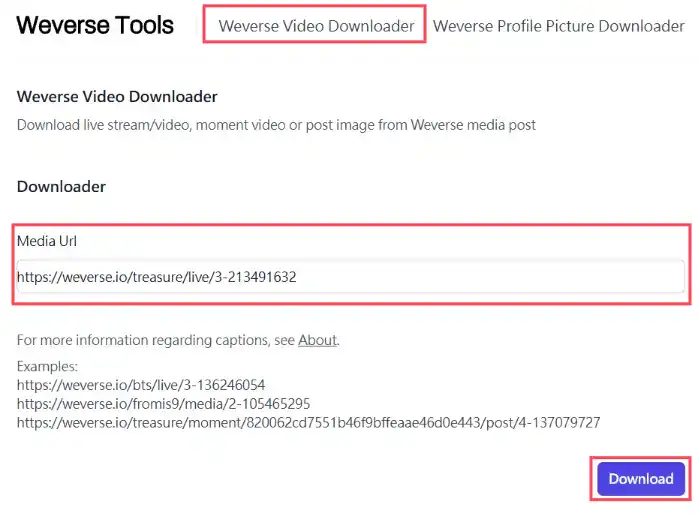
First, go to the weversetool official website, select “Weverse Video Downloader” at the top, then paste the Weverse video URL you want to download into the “Media Url” input box, and directly click the “Download” button.
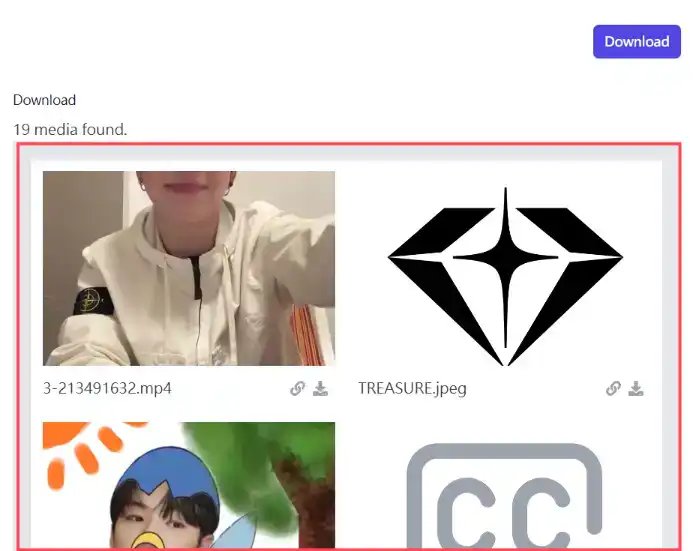
Wait a moment, and various media data will appear below, including images, videos, subtitles, etc.
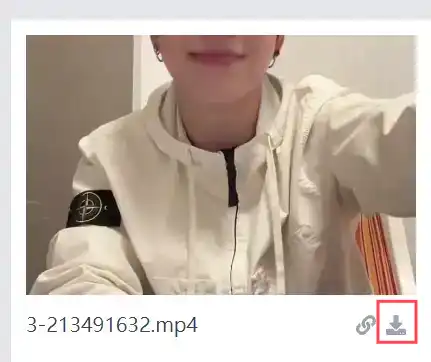
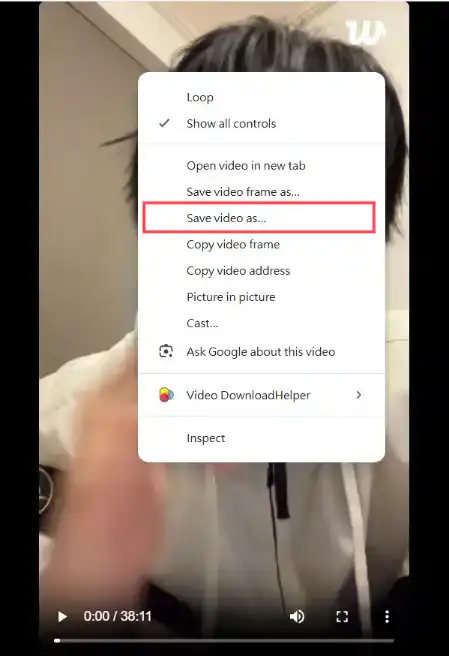
Click the download button for the media. A new tab will open. Right-click on the screen and select “Save as” to download.
1.2 Using TubeRipper to Download Weverse Videos
TubeRipper is a download tool that can download videos from multiple platforms, and it also supports downloading Weverse videos.
Pros
No login required
Completely free
Supports high-definition versions
Supports downloading live streams after they end
Usable on both mobile and computer platforms
Cons
Does not support downloading images
Slow speed
Cannot record real-time live streams
May not be able to download some private videos
Steps to Use
First, go to the TubeRipper official website, paste the Weverse video URL you want to download into the input box, and directly click the “Download” button.
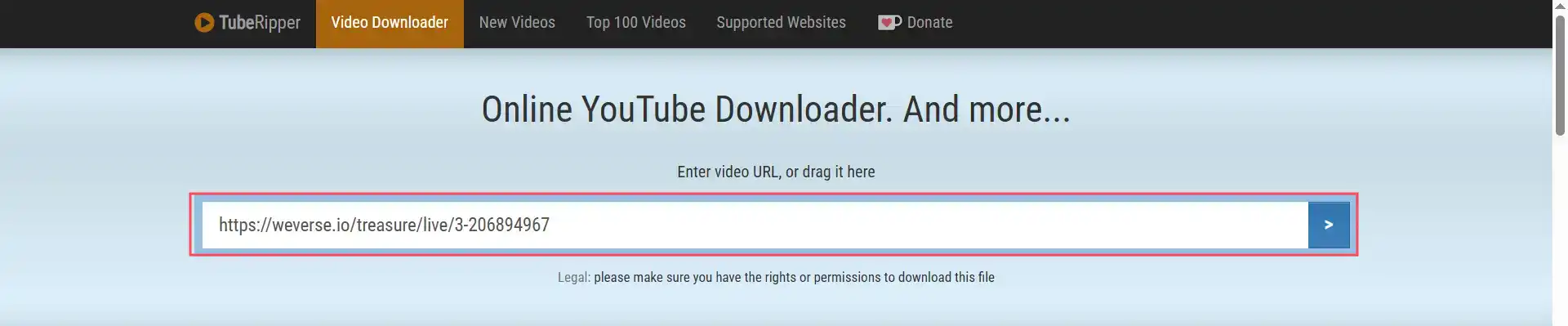
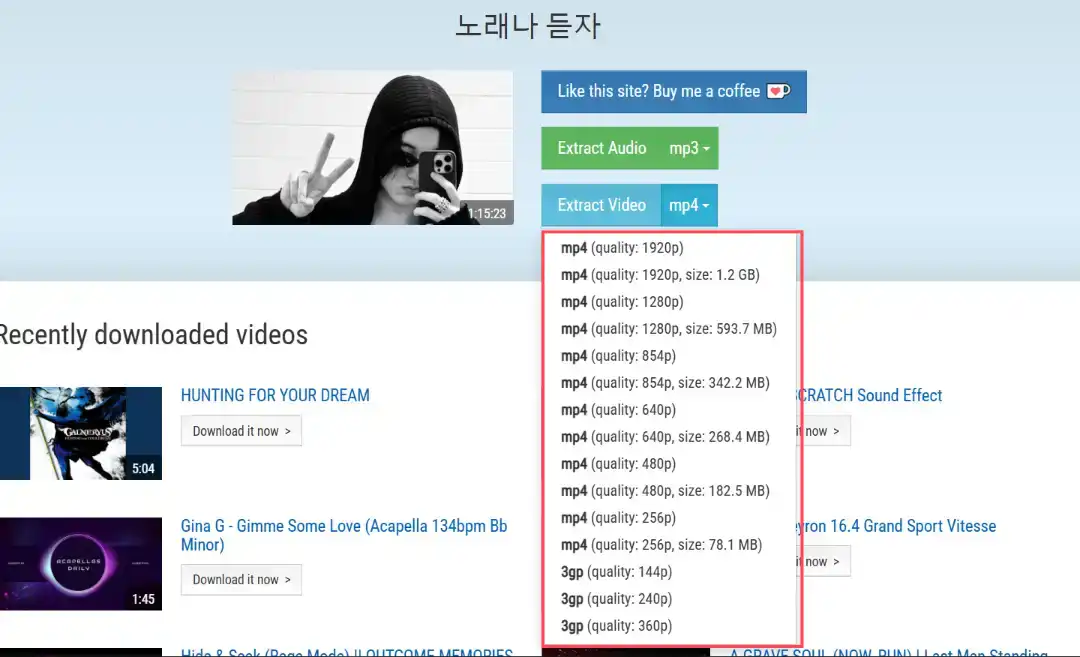
Wait a moment, and various resolutions of the video will appear below. Select the one you need and download it.
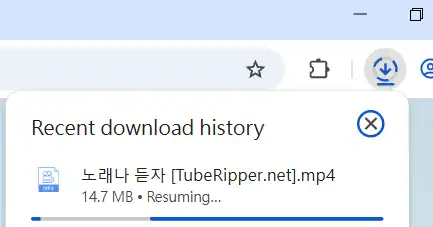
After clicking on the desired resolution, the browser will automatically start downloading. The speed might be slow because it does not use your network speed for the download.
Summary of Using Online Tools
Using online tools to download Weverse videos, images, etc., is very convenient and fast. The operation method for mobile users is quite similar. The only drawback is the inability to choose high-definition video versions, which might disappoint fans who want to collect HD videos of their idols. The following section will introduce how to use browser extensions to download videos, live streams, and images from Weverse.
2. Using Browser Extensions to Download Weverse Videos (Recommended)
What is a Browser Extension?
A browser extension is a special piece of software installed within the browser. It doesn’t require users to go through complicated installation steps; you just find the extension in the extension store, click to add it to the browser, and you can start downloading. Compared to web tools and local applications, browser extensions offer richer download support. Browser extensions can help you directly analyze various downloadable data on the page and let you choose the media you want to download. Unlike other tools, browser extensions can download videos directly without the tedious operation of copying video URLs. They also provide an ad-free environment, undoubtedly offering a good user experience. The only shortcoming is that most of them can only run on computers, which might cause some inconvenience for users without access to a computer.
2.1 Using Getvid Video Downloader to Download Weverse Videos
Getvid Video Downloader is a new browser extension that provides extensive website video recognition capabilities, helping you download videos from over 2000 websites, including various live streaming platforms, social platforms, and more. Using Getvid, you can easily download videos in different resolutions and record real-time live streams, including those on Weverse. It also offers advanced features such as downloading specific parts of a video, removing audio or video, specifying download quality, capturing video frames and images on web pages, etc. It is a feature-rich, all-in-one video download tool.
Pros
Supports real-time live stream recording and downloading videos after the live stream ends
Supports downloading all types of images on the web page
Supports downloading specific segments of a video
Supports high-definition downloads
Supports capturing GIFs from videos
Multi-threaded accelerated downloading
One-click download to a specified local directory
Very affordable subscription plan for unlimited downloads
Cons
Cannot be used on mobile phones
Does not support DRM video downloads
Steps to Use
This guide uses the Chrome browser for demonstration. The operation is similar for Edge, Firefox, etc.
First, go to the store page. Once in the store, click to install it into your browser. Wait a moment until the installation is complete.
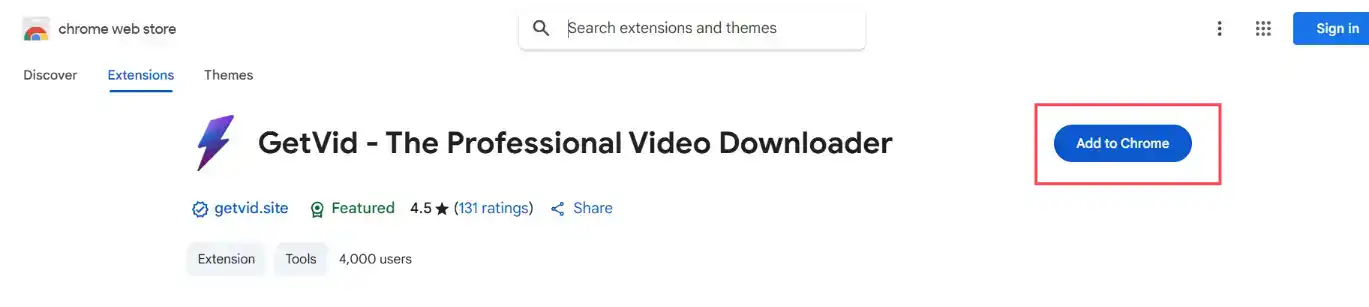
After successful installation, click the extension icon in the toolbar, then create an account or log in with Google. (You will receive free download credits immediately after logging in.)
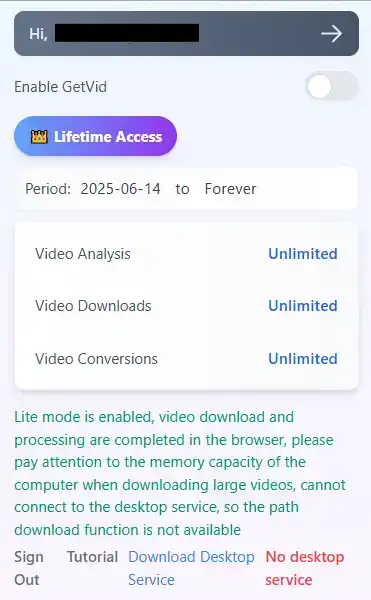
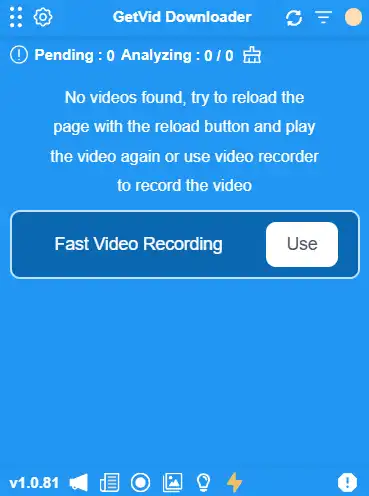
After logging in, you will see a blue area appear in the lower right corner. This is the Getvid floating element. All analyzed and downloadable videos will appear here.
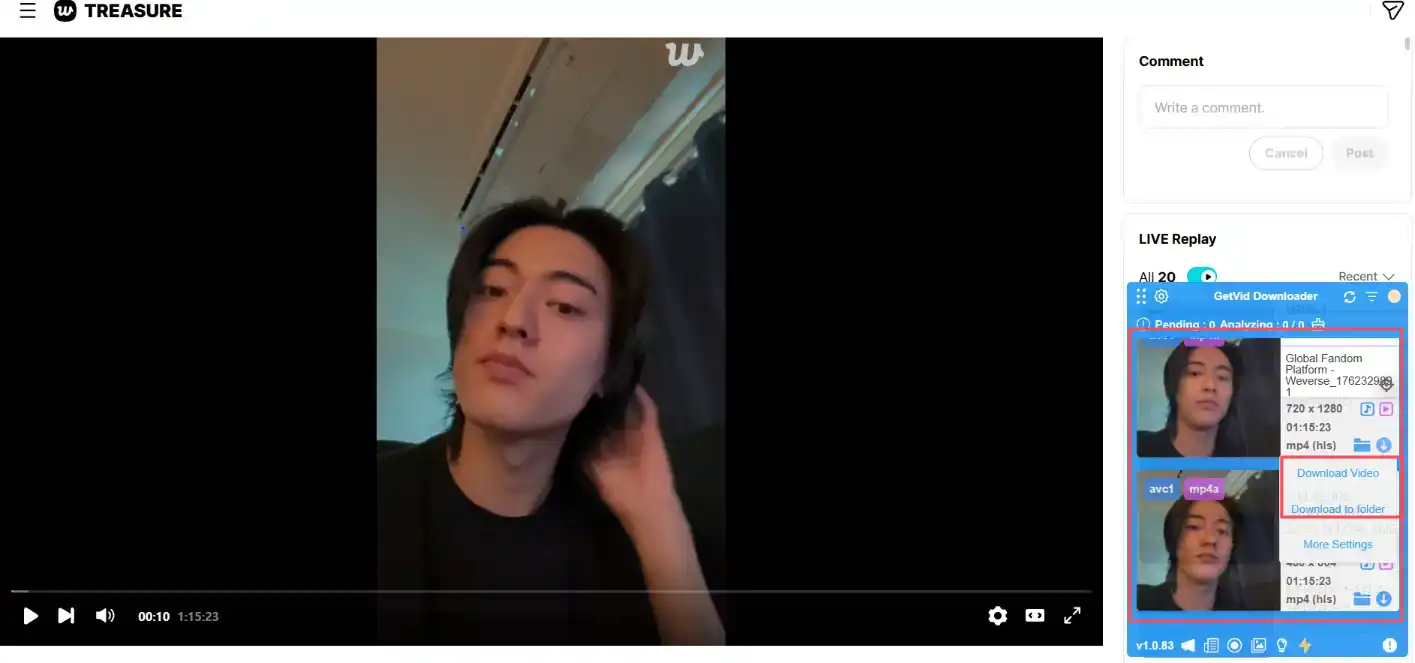
Go to the Weverse video URL you want to download. Wait for Getvid to analyze the video. Getvid will display all available resolution options for download. If you don’t see them, manually adjust the video resolution on the page, and Getvid will automatically re-analyze. After the analysis is complete, it will be displayed on the floating element. Click download, select the download destination, and download at high speed. Getvid also supports choosing a directory for download or downloading to a pre-set directory (most convenient).
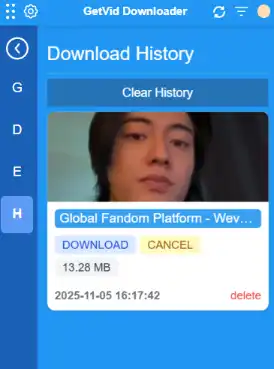
After the download is complete, you can also view and manage previously downloaded videos and live streams from the download history for quick reference.
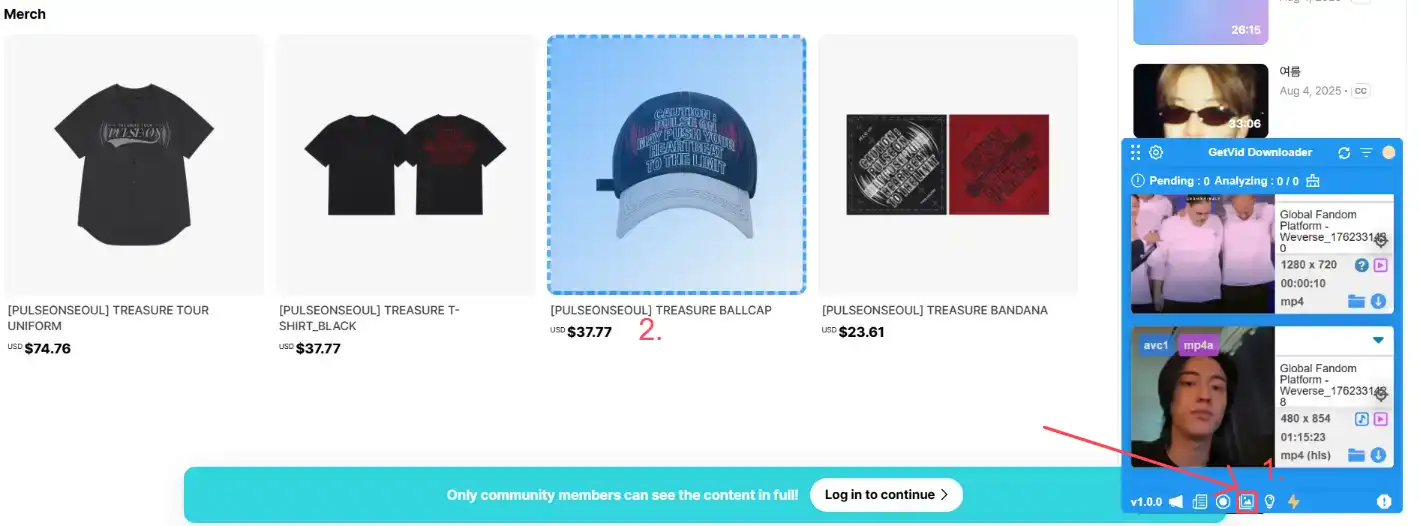
Getvid can also download images on web pages. Click the image mode button below the Getvid floating element to turn it on. Once enabled, your mouse cursor will show a blue box over images on the page, indicating it’s selecting the current element. Then simply click the mouse to download. You can also add a storage path, so downloaded images are directly saved to the target location without manually moving them to a folder later.
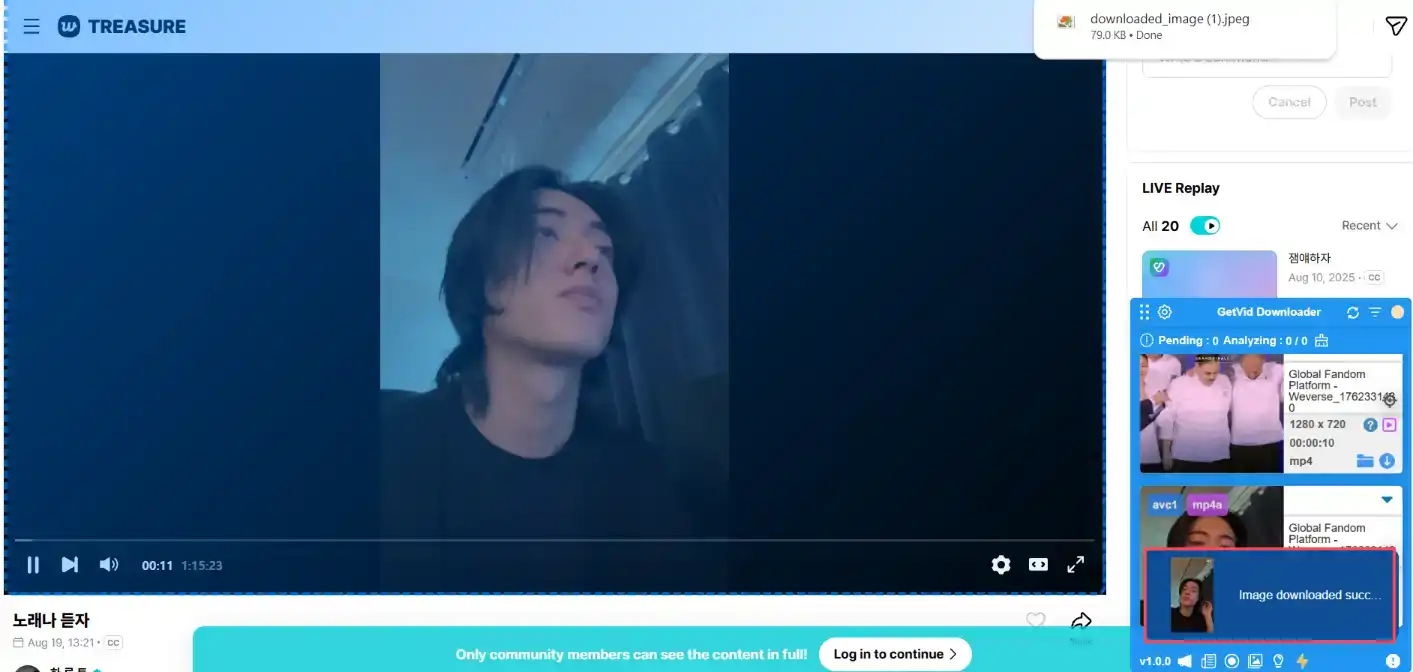
In addition to downloading images on the page, you can also take screenshots from videos, capturing the handsome or beautiful moments of your idols!
Summary of Using Browser Extensions
As of now, Getvid is the only browser extension that fully supports downloading videos and live streams from Weverse. Using the Getvid browser extension is currently the most convenient and recommended choice for users who want to download videos and live streams of their idols from Weverse. Besides Weverse, Getvid also supports video downloads from many live streaming platforms, including Twitch, Instagram, Facebook, and more. The output quality is high, the download speed is very fast, and it supports multiple simultaneous download tasks. Come and try Getvid! Don’t miss any moment of your idols!
3. Using Open-Source Tool yt-dlp to Download Weverse Videos
Pros
Completely free
The tool itself supports multiple websites
Can download private videos (requires setting cookies)
Open source, not malicious software
Multiple command-line options for customized downloading
Cons
Cumbersome operation
Cannot download page images
Requires manually copying links
Requires using the command line
Interface is not user-friendly for average users
Steps to Use
- Download and Install yt-dlp
First, please go to the yt-dlp official GitHub page.
Once on the page, scroll down until you see the INSTALLATION section. This will list download options for various operating systems.Since this tutorial demonstration uses Windows system, select the second installation option (usually the download link for
yt-dlp.exe). Users should choose the corresponding download option based on their computer’s operating system.After downloading, it is recommended to place the file in a clean, easy-to-remember folder, for example:
C:\Tools\yt-dlp\.⚠️ Reminder:
To avoid “path not found” or “command error” issues later, ensure the path contains only English letters and numbers, and try not to include spaces or non-English characters, as this might cause errors when executing commands in the command line.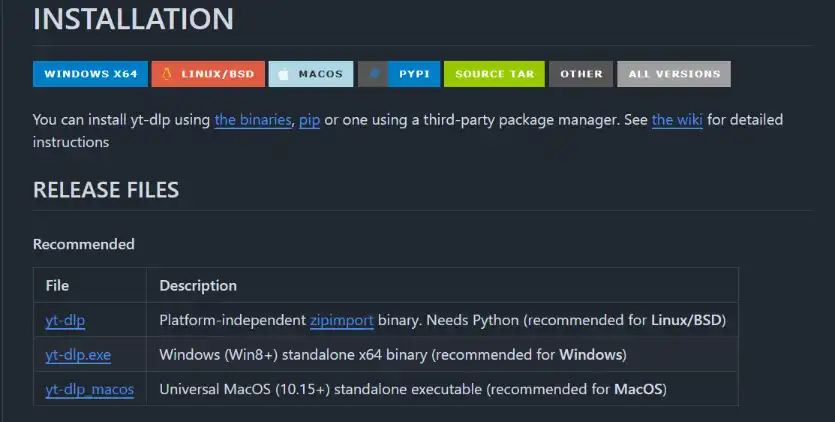 If you directly double-click
yt-dlp.exeto open it, the system will show an error prompt: “yt-dlp.exe: error: Do not double-click the executable, instead call it from a command line.” This is not a malfunction, but because yt-dlp is not a typical graphical application and must be used via the command line. - Launch yt-dlp via Command Line
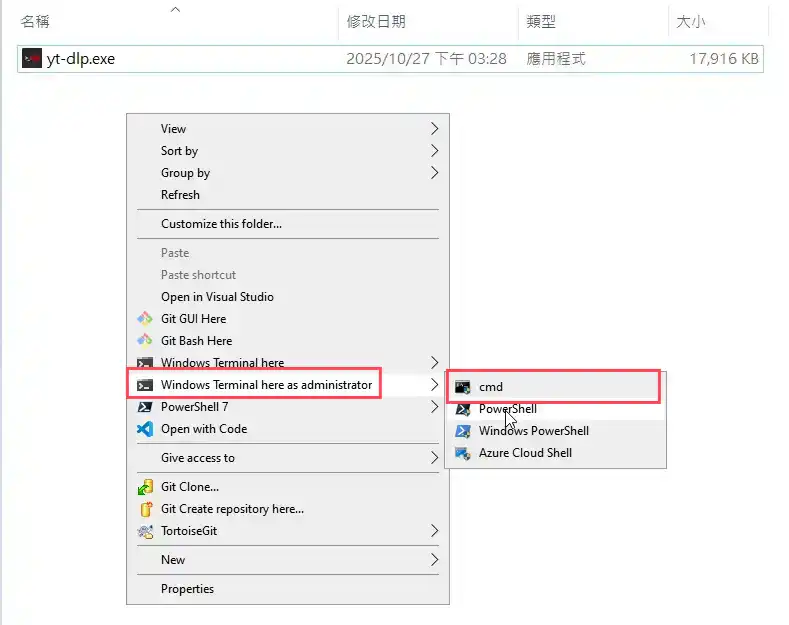
Next, open the folder where you just placed yt-dlp.
Right-click in a blank area of the folder and select “Open command window here” or “Open PowerShell window here”.
This will open a command window in the current folder path, saving you the trouble of manually entering the path.You can use either cmd (Command Prompt) or PowerShell; both can execute yt-dlp commands with the same effect.
- Verify yt-dlp Installation Success
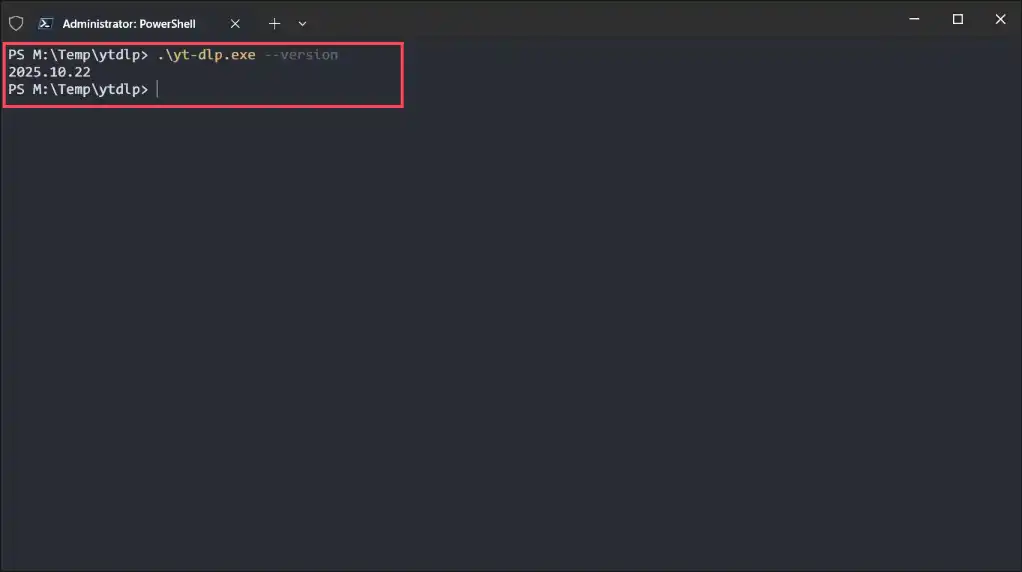
Finally, let’s confirm if yt-dlp can run normally.
In the command prompt window, enter the following command (note the beginning must include.\):.\yt-dlp --versionIf a version number appears, the installation was successful.
- List All Available Formats for the Video
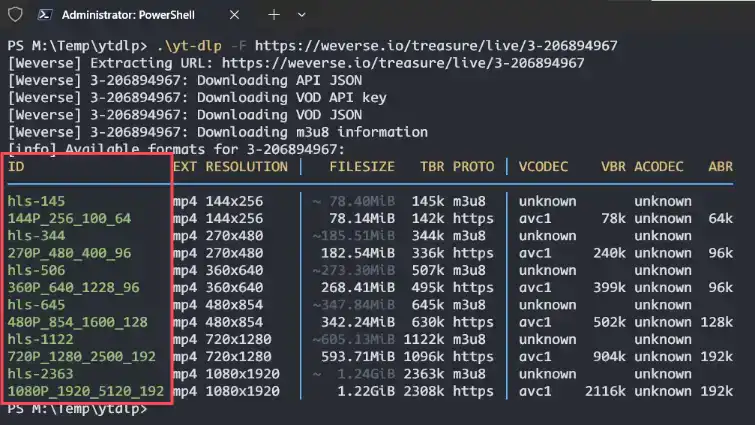
After confirming the installation is successful, enter the following command:
.\yt-dlp -F <The Weverse video URL you want to download>For example:
.\yt-dlp -F https://weverse.io/treasure/live/3-206894967If successful, it will display all available formats for download, including resolution, codec, and other information.
- Select Your Desired Format for Download
If step 4 is successful, copy the ID of the format you need. From the image above, you can see there are many IDs. Let’s choose to download 1080x1920. You can see that 1080x1920 has two IDs: hls-2363 and 1080P_1920_5120_192. Choose one of them. (Based on testing, 1080P_1920_5120_192 is the fastest.)
Then enter the following command:
.\yt-dlp -f <ID> <The Weverse video URL you want to download>For example:
.\yt-dlp -f 1080P_1920_5120_192 https://weverse.io/treasure/live/3-206894967After entering successfully, the download will start and eventually be saved in the current directory.
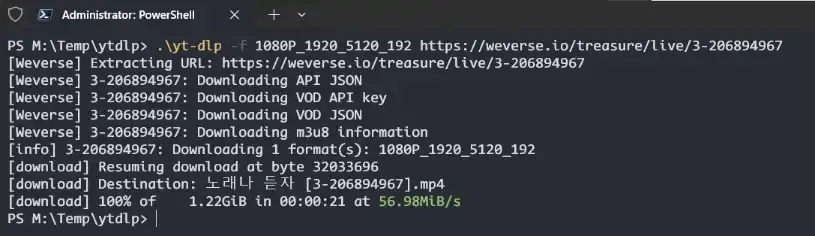
Seeing the video appear in the folder means the download was successful!

Summary of Using yt-dlp
Using yt-dlp to download videos is more cumbersome than other tools. Its command-line operation might be tricky for non-computer professionals. However, once you learn how to use it, it can become a powerful tool for downloading videos. It supports numerous websites and offers many command options, enabling customized download functionalities. If you want to learn more about using yt-dlp, you can visit this tutorial, which details various command-line usages of yt-dlp.
Article Summary
This article introduced four tools capable of downloading Weverse videos, including online downloaders, browser extensions, and local open-source software. As of now, all these tools are functional. Users just need to choose the one that suits them best. However, for users who don’t want to spend time downloading other software, using the Getvid Video Downloader directly can save you a lot of time.
Supports 2000+ Websites
One-Click Download to Folder
Auto Naming