
Best Niconico Video Downloader 2026 – 3 Simple Ways to Save Niconico Videos

NicoNico Douga is one of Japan’s most popular video platforms with diverse content. While many users want to enjoy these videos offline finding reliable download methods can be challenging. This article introduces three tested methods with browser extensions offering the most seamless and intuitive downloading experience. Whether you’re a casual user or need batch processing capabilities you’ll find the perfect solution here.
Want to download Niconico videos quickly and easily? Tried other tools without success? Try Getvid Video Downloader! A new browser extension that supports downloading from over 2000+ public video websites. Getvid lets you download directly to folders making video management easier while offering advanced features like image downloading and screen recording. Officially verified by Google Chrome Store the extension is safe and reliable with localized language interfaces for better user experience. Give it a try today!

Supports 2000+ Websites
One-Click Download to Folder
Auto Naming
1. Using Online Tools to Download Niconico Videos
Web-based downloaders are popular among users for their convenience - no login required just paste the URL and download. Being website-based they naturally support mobile browsers making Niconico video downloads accessible on smartphones. Compatible with mainstream browsers like Chrome Safari Edge Firefox and mobile browsers on Android and iOS.
Who should use online tools?- Occasional downloaders
- Users with minimal download needs
- Mobile-only users
Using Nicozon to Download Videos
Pros
No login required
Supports both new and old videos
Allows choosing download location
Cons
Complex for beginners
Sometimes fails to download
No multi-task downloading
Unintuitive and basic interface
No localization inconvenient for non-Japanese speakers
Step-by-Step Guide
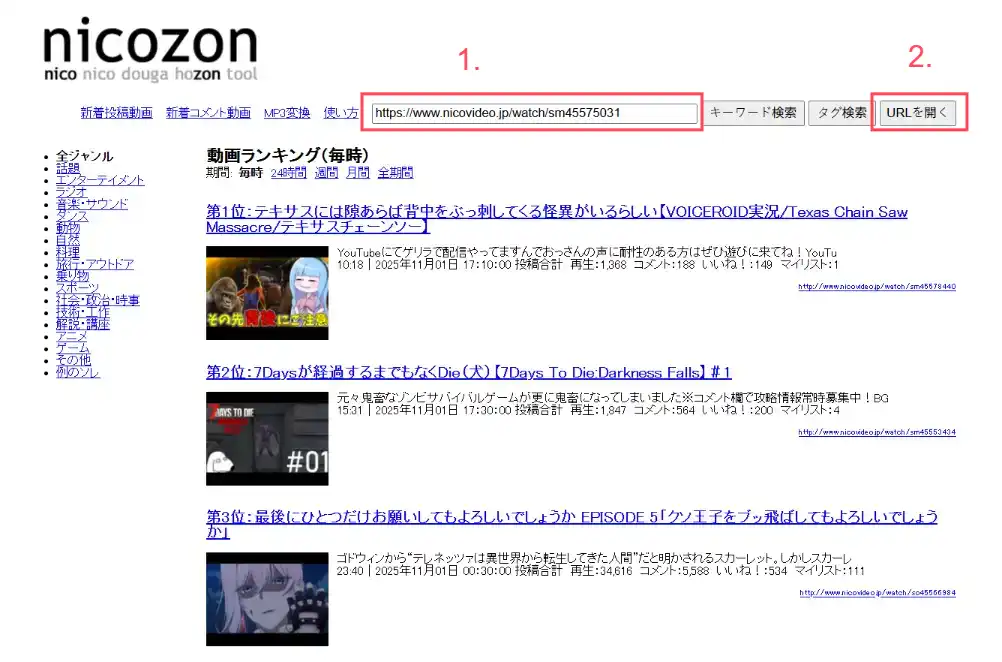
- First visit Nicozon official website paste your Niconico video URL and click the “URL を開く” button to parse the video from the URL
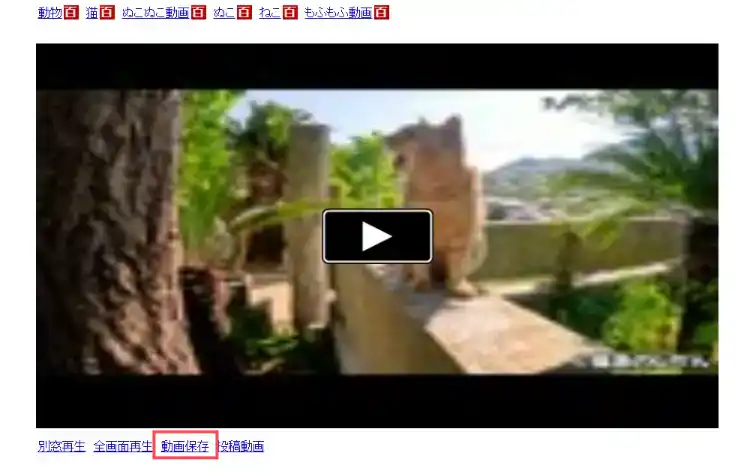
- After clicking you’ll be redirected to a new tab scroll down find “動画保存” and click to open another new tab
In the new tab you’ll see “BETA 版ブックマークレット” text drag this to your browser’s bookmark bar
3.1 Enable bookmark bar by pressing
Ctrl + Shift + B(The green highlighted area is the bookmark bar)
3.2 Drag the button to bookmark bar
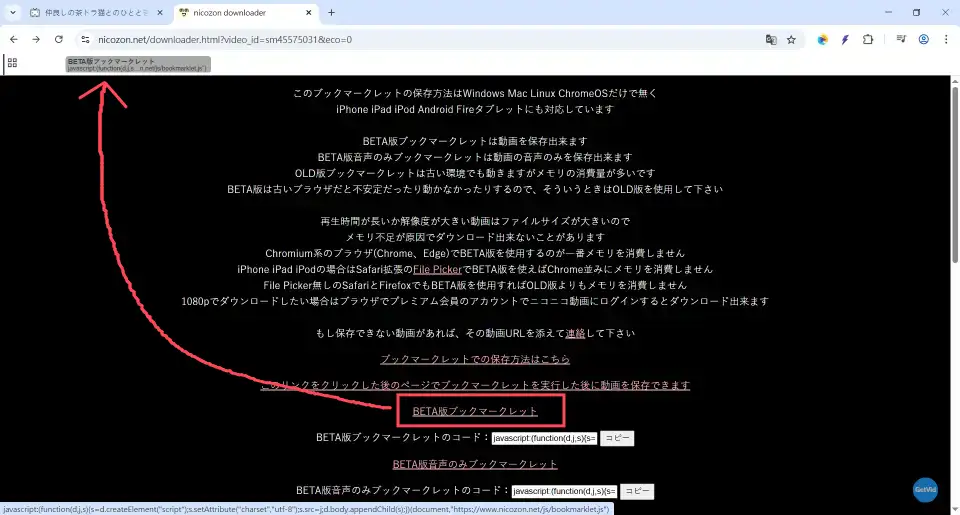
3.3 Button position after dragging

Click “このリンクをクリックした後のページでブックマークレットを実行した後に動画を保存できます” button to open a new tab (usually blank) then click the newly added bookmark button and wait for video download completion showing progress indicators
4.1 Click “このリンクをクリックした後のページでブックマークレットを実行した後に動画を保存できます”
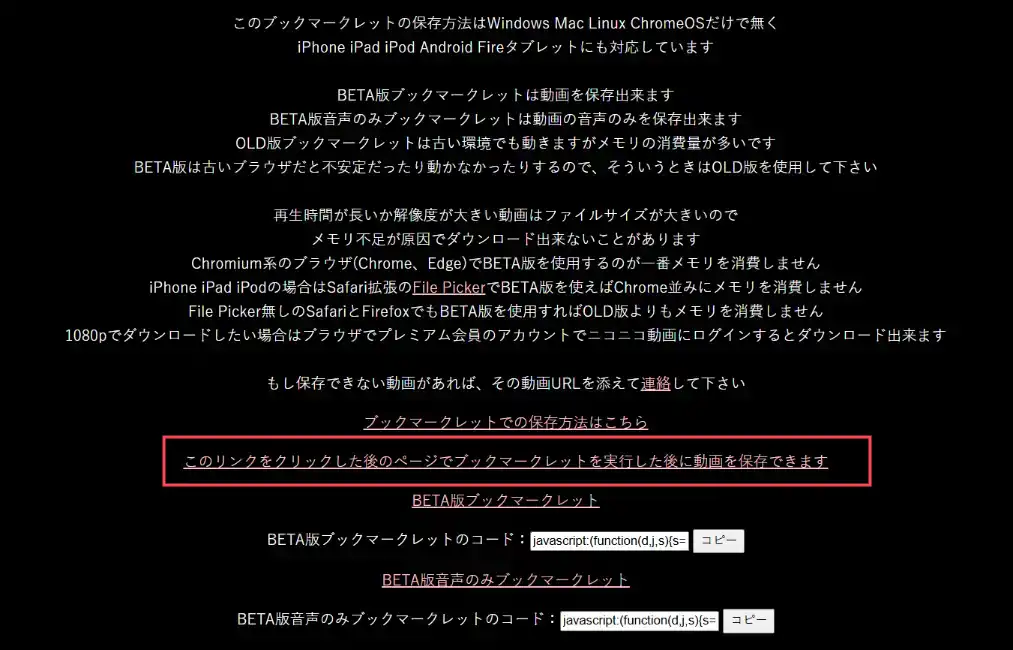
4.2 After new tab opens click the bookmark button
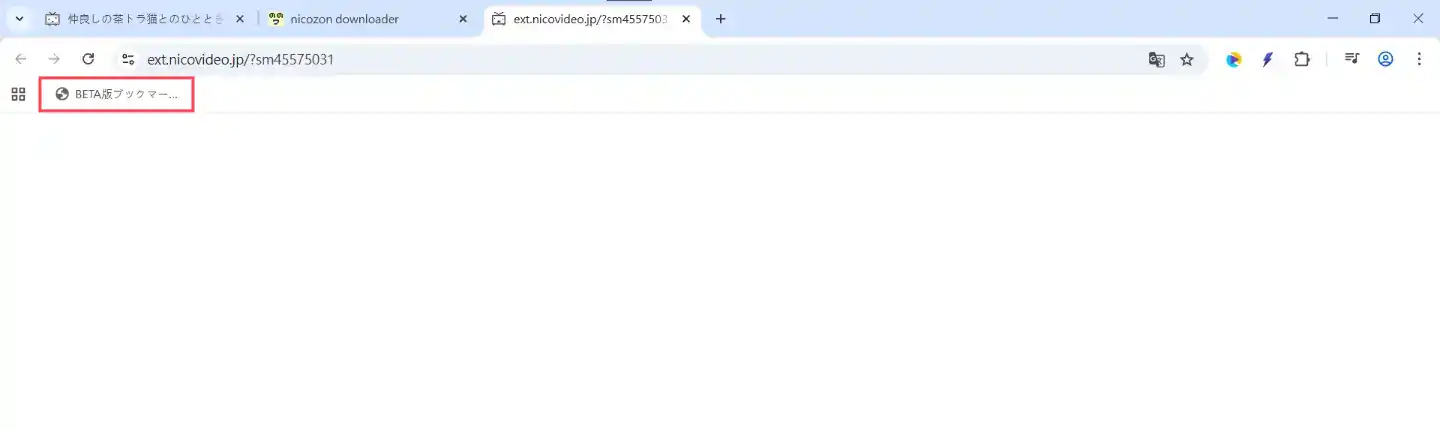
4.3 Wait for video download and processing

After processing completes “ページをクリックしてファイルの保存先を選んでください” text appears click any blank area on the page to open file save dialog choose location and download
5.1 Click any blank area on the page

5.2 Select save location
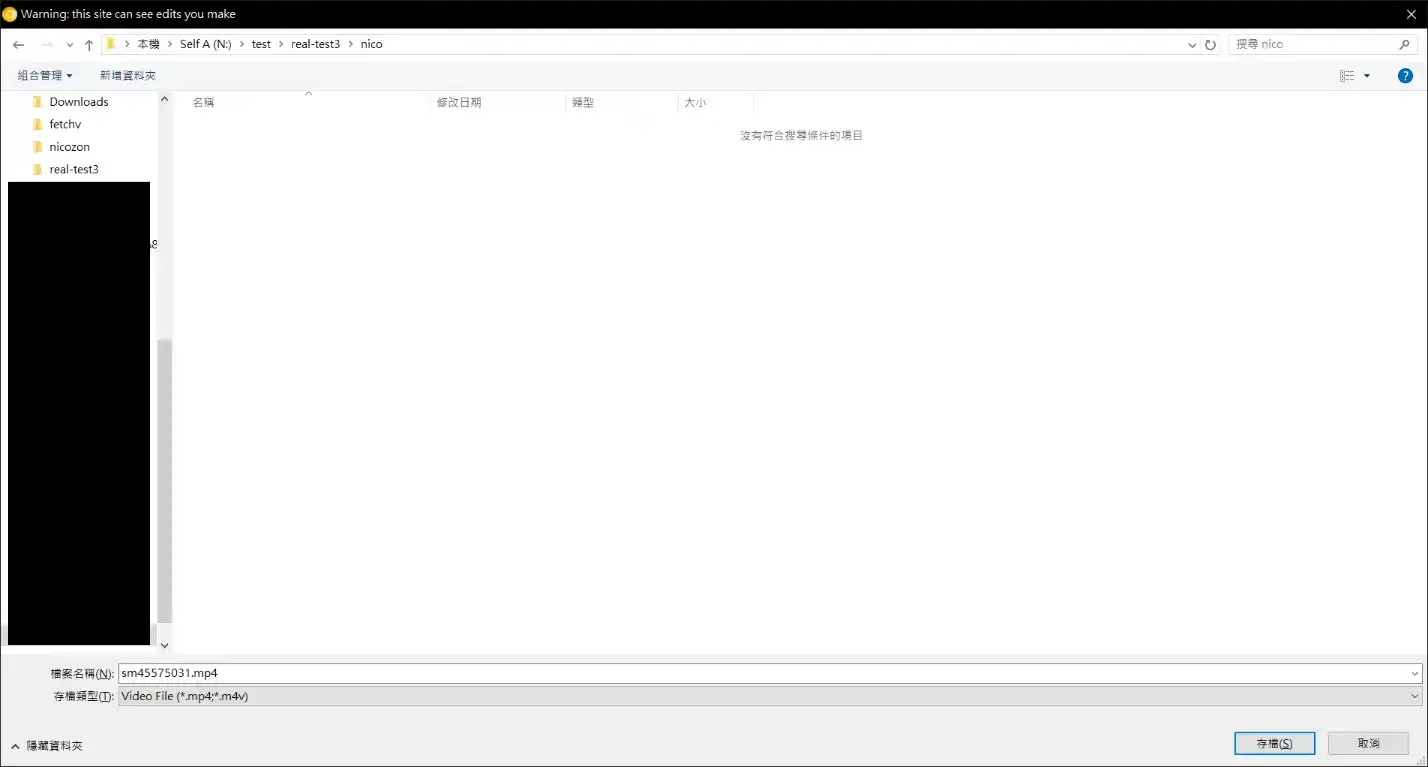
5.3 Download completed
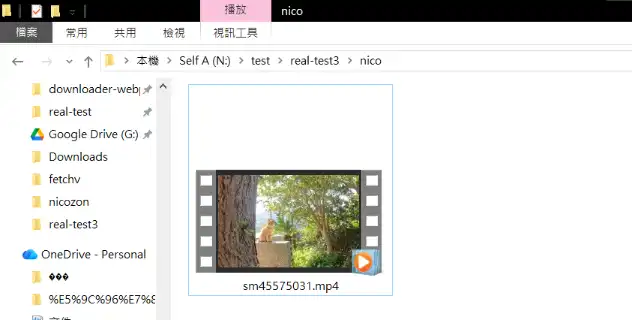
Summary
Clearly using Nicozon to download Niconico videos involves complex steps requiring user familiarity. We recommend bookmarking this page for future reference. If this method seems cumbersome try the browser extension solution mentioned below which enables one-click downloads without complicated procedures.
2. Using Browser Extensions to Download Niconico Videos
Browser extensions are powerful tools that enhance your web experience by handling complex tasks. The video downloaders we’ll introduce eliminate the complex steps from Chapter 1’s web tools. Major browsers like Google Microsoft and Firefox heavily invest in extension ecosystems screening verifying and filtering unsafe extensions to ensure only virus-free reliable extensions reach users.
Who should use browser extensions?- Frequent video downloaders
- Users with substantial download needs
- Those needing private video downloads
- Users wanting video or audio-only downloads
- People needing partial video downloads
- Users requiring high privacy protection
- Those preferring ad-free environments
2.1 Using Getvid Video Downloader Extension for Niconico
Getvid Video Downloader is a new browser extension designed for convenient cross-platform video downloads supporting 2000+ websites. Beyond basic downloads it offers HLS DASH live stream recording image downloads video range extraction GIF generation audio/video separation and more - all within your browser without installing local software.


Pros
Multi-threaded acceleration 5-10x faster
Ad-free experience
Supports more platforms beyond Niconico
Some extensions support folder downloads
Simultaneous multiple downloads
No manual URL copying and parsing
Official browser certification risk-free
Large video file support
Cons
Desktop browsers only
Step-by-Step Guide
Using Chrome browser for demonstration
First visit the store page depending on your browser. We recommend Chrome and Edge for more features like folder downloads recording capabilities and larger file support while Firefox offers better performance. Click install to add to browser
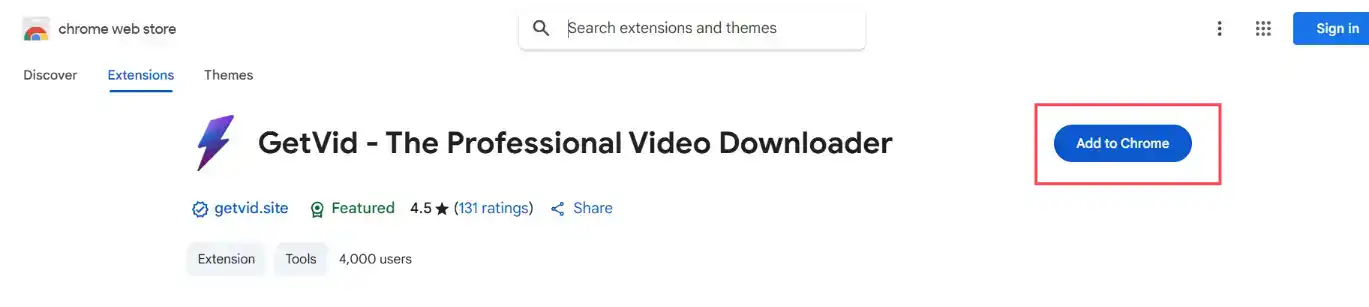
After installation click the extension icon in toolbar then create account or login with Google (Login grants free download credits immediately)
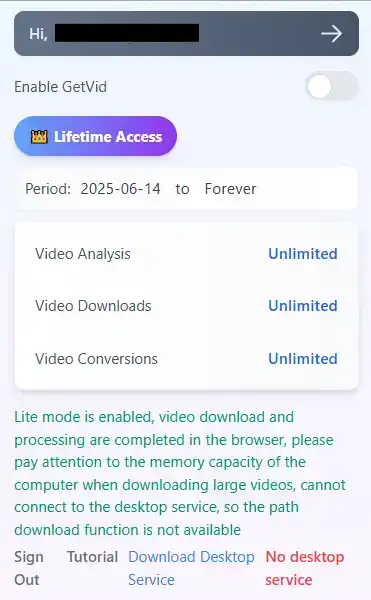
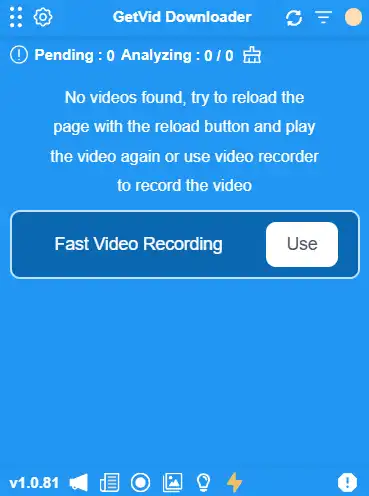
After login a blue floating element appears at bottom-right corner - this is Getvid’s floating panel where all analyzed downloadable videos appear
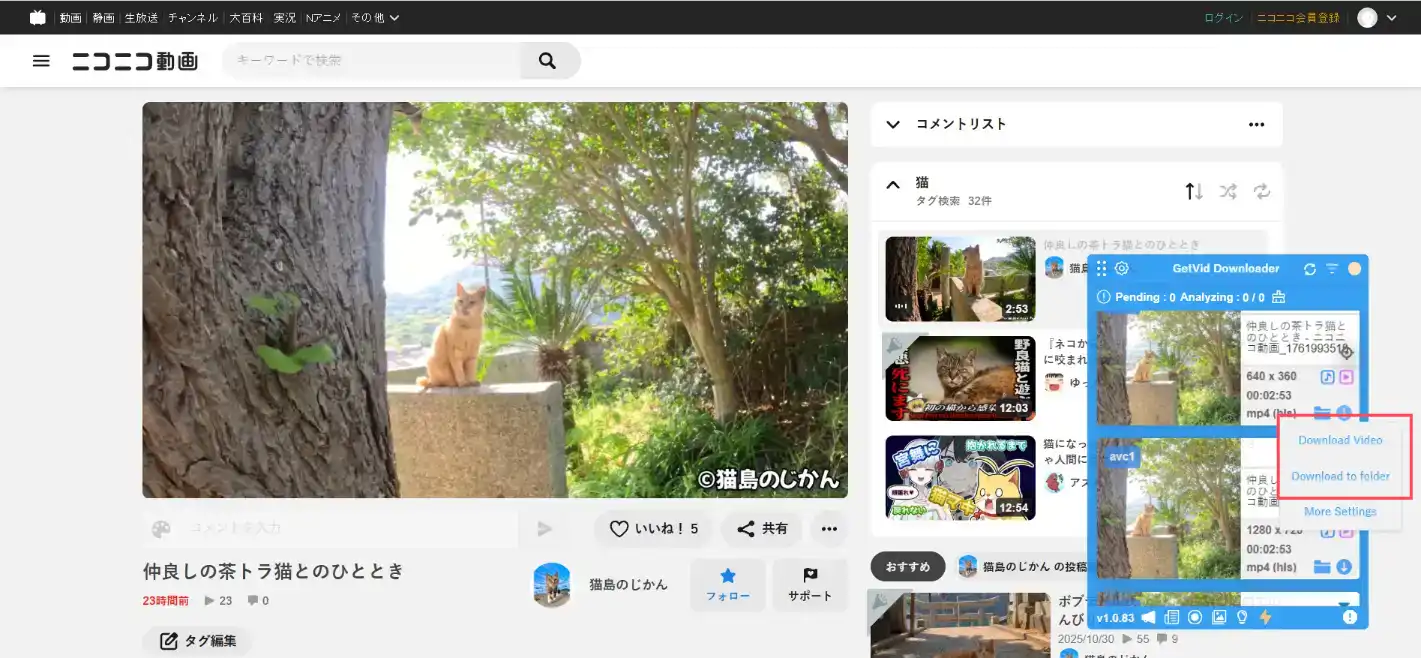
Visit the Niconico video URL wait for Getvid to analyze the video (default shows highest resolution) after analysis appears in floating element click download choose destination for high-speed download supports directory selection or pre-set folders (most convenient)
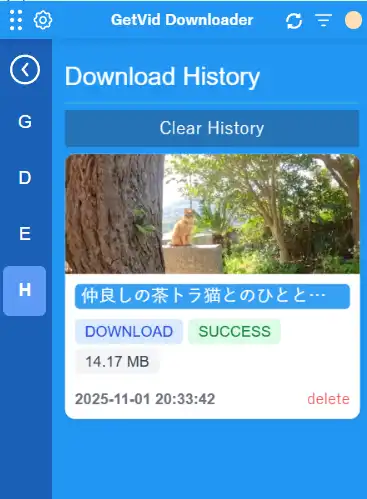
After download completion view previously downloaded videos in history and easily remove them
2.2 Using Nico Downloader Extension for Niconico Videos
Nico Downloader is a specialized extension for Niconico video downloads offering easy downloading multiple resolution selection automatic naming and video/audio-only downloads.
Pros
Trusted by over 100000 users
Ad-free
Completely free
Automatic naming
Cons
Desktop browsers only
Cannot download to specific folders
Cannot download partial videos
Cannot download large videos
Step-by-Step Guide
Using Chrome browser for demonstration
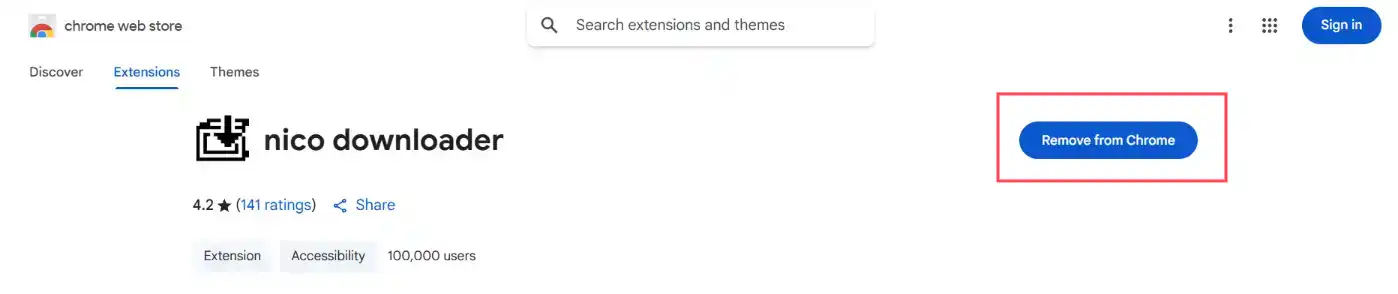
First visit the store page click install to add to browser
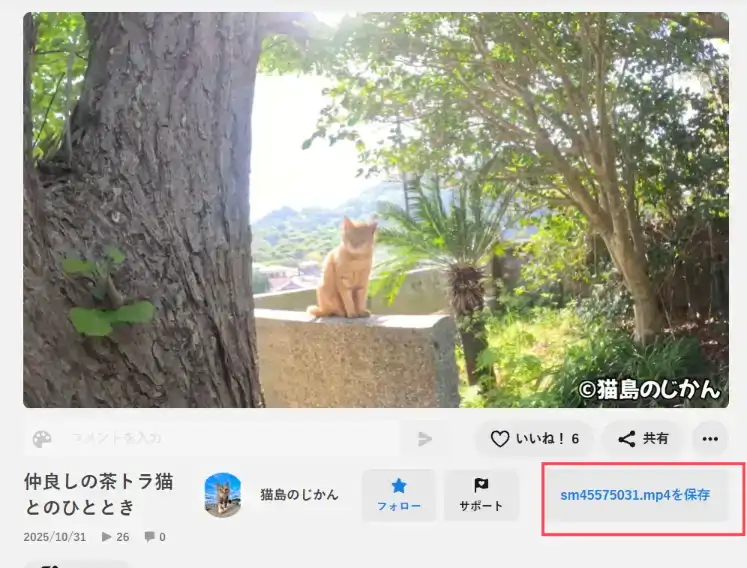
After installation visit your target Niconico video URL wait momentarily to see a blue “Save video” text button below the video’s bottom-right corner
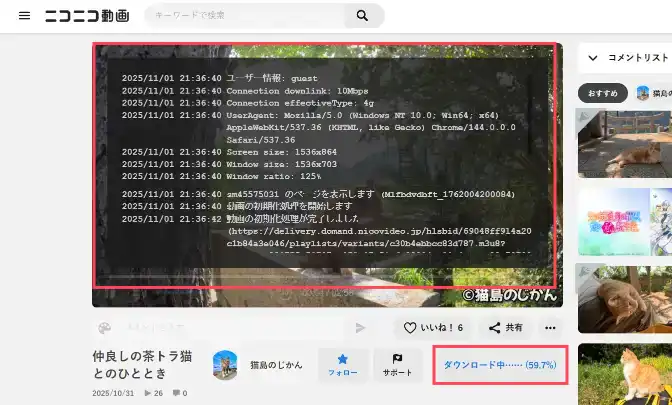
Click save button to reveal settings like resolution selection audio quality etc. After choosing settings click save again to start download showing progress bar downloads to system default folder when complete
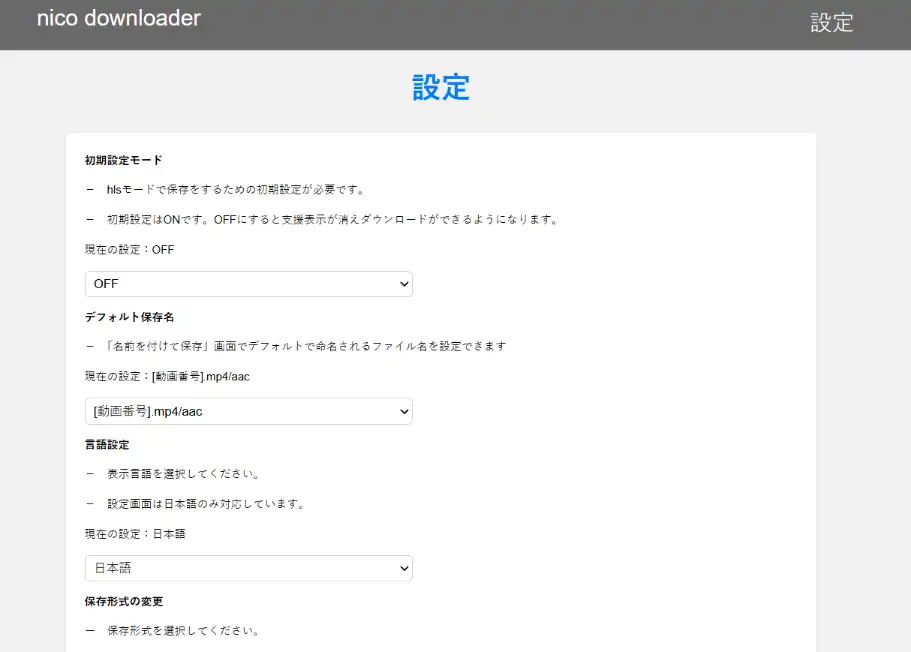
Click extension icon to access settings where you can configure naming conventions language video/audio-only saving
- 4.1 Click extension icon enter settings page
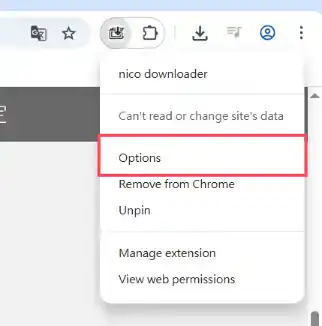
- 4.2 Settings page
2.3 Using Video DownloadHelper Extension for Niconico Videos
Video DownloadHelper as a decade-old established video downloader has gained substantial user base. The latest version includes built-in HLS download support allowing direct Niconico video downloads within the extension.
Pros
Ad-free
Supports audio or video downloads
Pre-naming in settings
Can download to system specified folders
Cons
Desktop browsers only
Cannot download partial videos
Cannot download large videos
Step-by-Step Guide
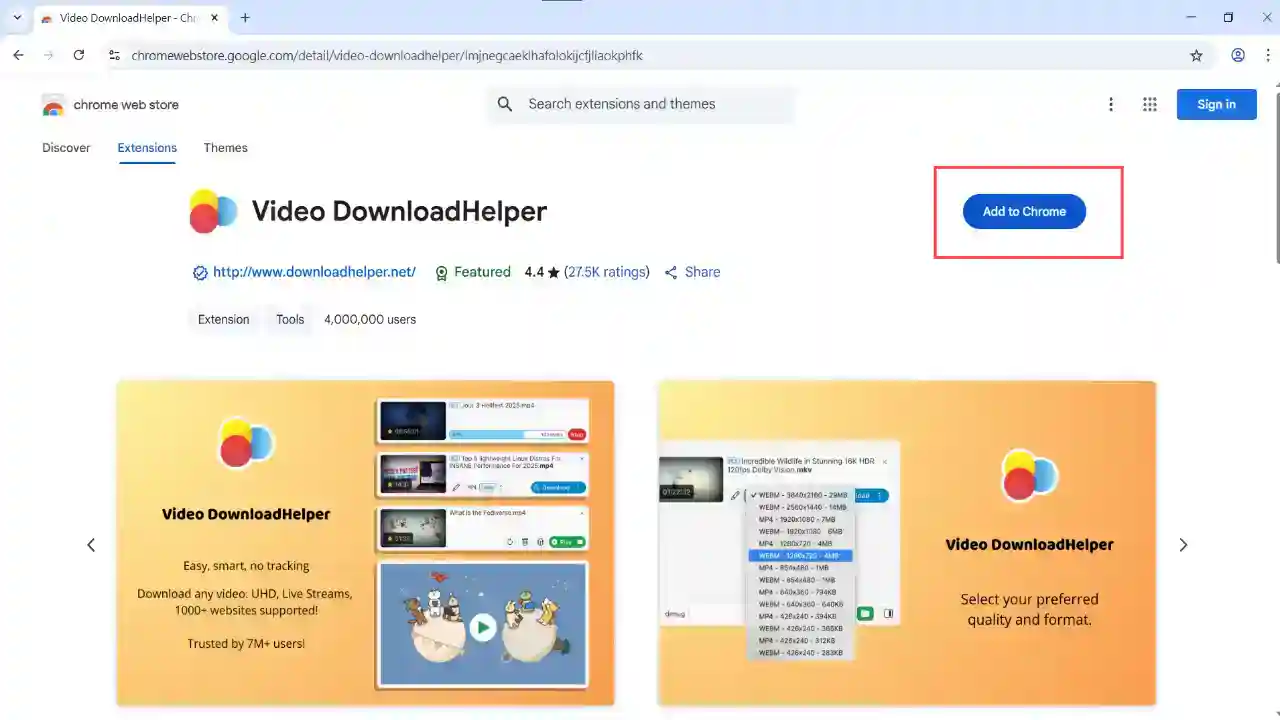
Visit Google store page search Video DownloadHelper click install to browser
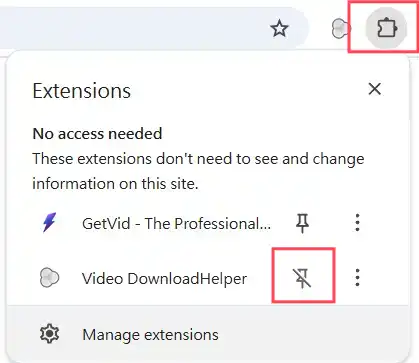
After installation pin the extension to toolbar for easy access
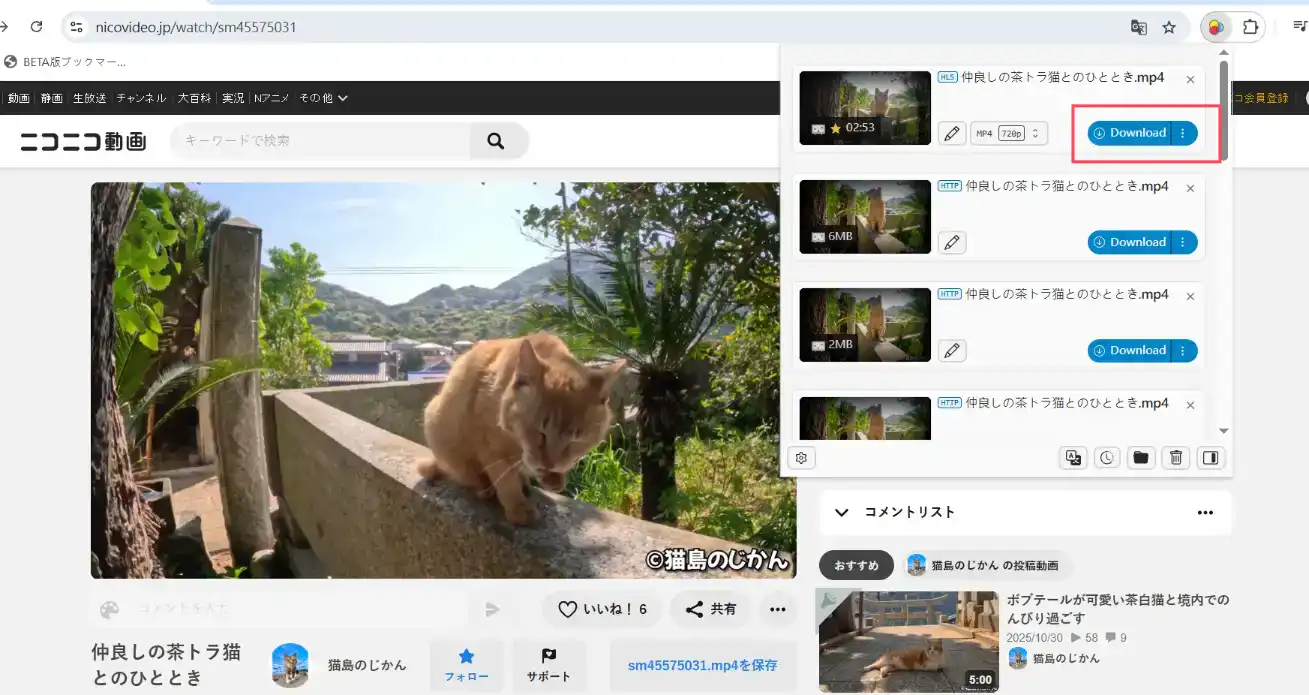
Visit target Niconico video URL wait for Video DownloadHelper to analyze video after successful analysis the extension shows available videos with adjustable resolutions click download button
Wait for Video DownloadHelper’s internal download completion then triggers browser to save file to default download location
Summary
Using browser extensions for Niconico downloads is significantly faster and more convenient than web tools making it this article’s most recommended method. Importantly many extensions work across multiple platforms saving time searching for different site downloaders. Below is a comparison table of Niconico video download extensions.
| Feature Aspect | Getvid Video Downloader | Video DownloadHelper | Nico Downloader |
|---|---|---|---|
| Supports Niconico Videos | ✅ | ✅ | ✅ |
| Download to Specific Folder | ✅ | ⚠️ System Default | ❌ |
| Live Stream Recording | ✅ | ⚠️ Partial Support | ❌ |
| Member Login Videos | ✅ | ✅ | ❌ |
| Quality Selection | ✅ | ✅ | ❌ |
| Automatic File Naming | ✅ | ✅ | ✅ |
| Output Format | MP4 | MP4 | MP4 |
| Extension Stability | 🟢 High | 🟢 High | 🟡 Medium |
Using Open Source Tool yt-dlp to Download Niconico Videos
Pros
Completely free
Supports multiple websites
Can download private videos (requires cookie setup)
Open source no malware concerns
Cons
Complex operation
Manual link copying required
Command line interface needed
Unfriendly interface for average users
Operation Steps
Get yt-dlp
Visit yt-dlp GitHub page scroll down to INSTALLATION section click the installation version matching your OS. This tutorial uses Windows so select the second option.
After download place the program in a folder. Recommended folder path uses English letters only without spaces to avoid parsing errors.
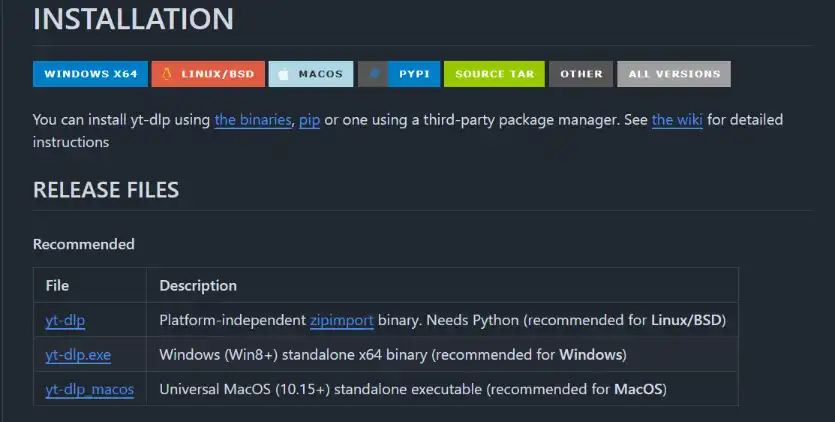 WarningIf you double-click the executable directly you’ll see: “yt-dlp.exe: error: Do not double-click the executable instead call it from a command line.” This means the program isn’t a typical application but requires command line operation.
Launch yt-dlp via command line
Open the folder containing yt-dlp right-click empty space select “Open command prompt here”. This opens a new command line window from current path.
You can use either cmd or PowerShell.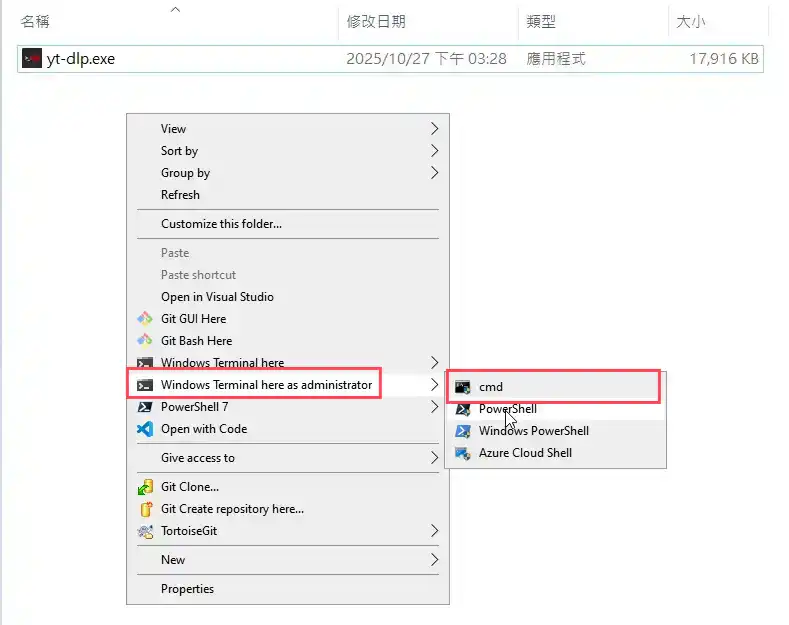
Verify installation success
In command prompt type
.\yt-dlp --version(must include.\prefix) if version number displays installation succeeded.
If errors occur likely wrong path opened please reconfirm folder location.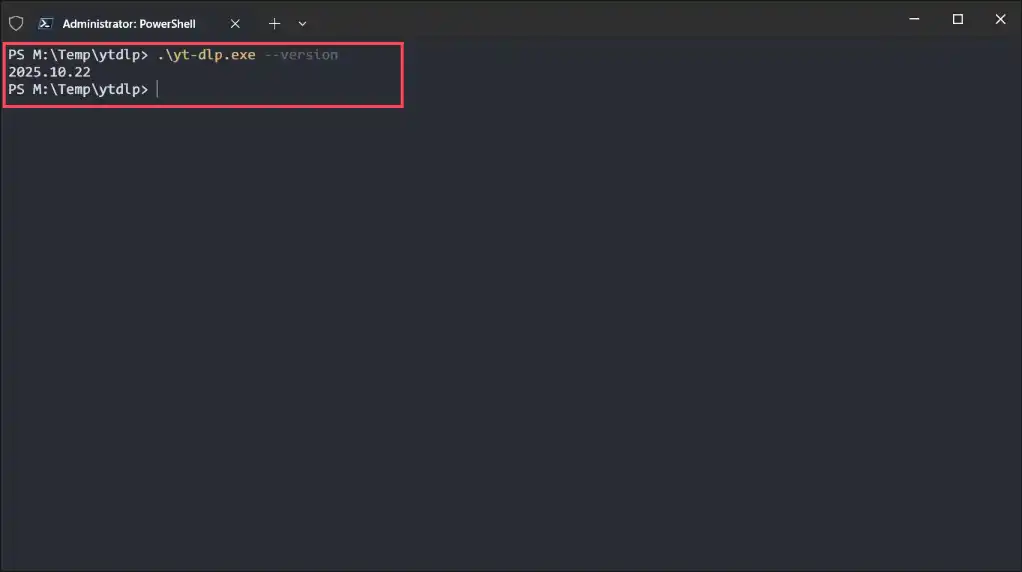
Install FFmpeg (Skip if you already have FFmpeg in environment variables)
Since Niconico videos use separate audio/video playback FFmpeg is needed for merging. FFmpeg is a powerful open-source audio/video processing tool used by many streaming services today.
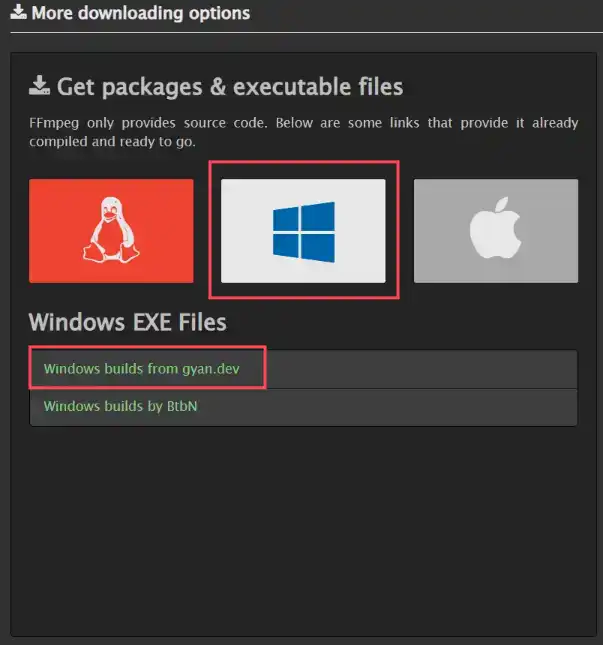
4.1. Visit FFMPEG download page find your system version for download. Using Windows version here.
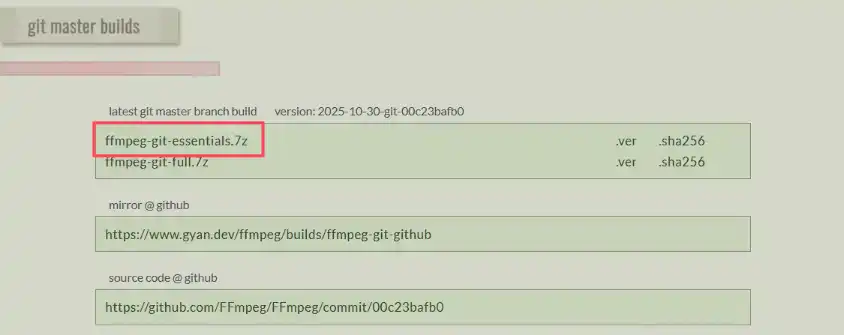
4.2. On the page scroll down find “ffmpeg-git-essentials.7z” click to download compressed package.
4.3. After download extract it (if unsure how to extract download 7-zip install 7-zip or other extraction software right-click the FFmpeg compressed package click 7-zip extract). After extraction enter folder find bin folder containing three executables:
- ffmpeg.exe
- ffprobe.exe
- ffplay.exe
We only need ffmpeg.exe.
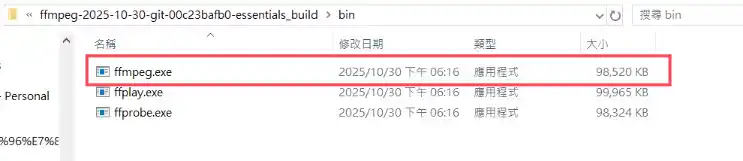
4.4. Copy ffmpeg.exe to your yt-dlp folder completing installation.

Download video
yt-dlp offers various command parameters for different functions.
For general users this method is simplest and most intuitive:In command prompt type
.\yt-dlp <your_Niconico_video_link> --merge-output-format mp4 --ffmpeg-location .--merge-output-format mp4: Specifies MP4 output format--ffmpeg-location .: Specifies FFmpeg location as current folder
Software automatically analyzes video page and starts download after completion launches FFmpeg to merge video and saves in current folder.
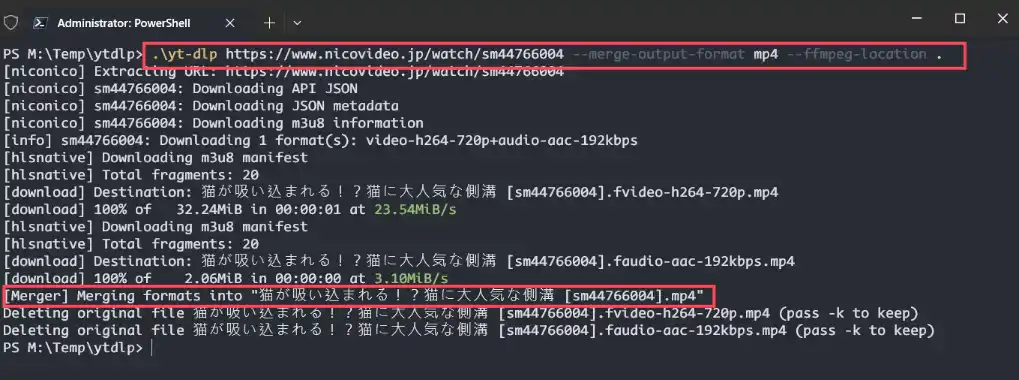
After completion you’ll see a new MP4 file in directory - this is your downloaded video.

More command parameters
To explore more yt-dlp advanced features type
.\yt-dlp --helpto view all available options.
You can also reference this tutorial detailing various functions including:- Custom output filenames
- Specified save paths
- Video or audio extraction only
- Output format specification
- Available resolution listing
- And more advanced settings…
Summary
Using yt-dlp for Niconico downloads is more complex than web tools but becomes manageable with familiarity. If encountering unfamiliar commands consult AI for solutions. Its capabilities extend beyond these basics - learning yt-dlp makes downloading from other sites easier too. Of course if this method seems too cumbersome using Getvid Video Downloader can save significant time.
Conclusion
This article introduced three methods for downloading Niconico videos each with distinct advantages in convenience privacy and stability. Choice depends on individual needs though we recommend Getvid Video Downloader. Just install login and get free trial immediately without credit card required.
Recommendations for different usage needs:
- Efficiency and convenience: 👉 Browser extensions
- Stability and security: 👉 Browser extensions
- Open source and freedom: 👉 yt-dlp
- Maximum privacy protection: 👉 yt-dlp
- Minimal video downloads: 👉 Web tools
Frequently Asked Questions
Q1. Is downloading Niconico videos illegal?
Generally downloading public Niconico videos isn't illegal but users must comply with Niconico's terms of service. Don't use for purposes beyond personal use like profit-driven activities. For high-copyright content like original music anime etc never redistribute.
Q2. How should downloaded videos be used appropriately?
Appropriate usage depends on the video's nature. For casual videos ask uploader permission for downloading and usage elsewhere. For high-copyright protected content never use elsewhere unless explicitly permitted by copyright holders.
Q3. Why can't some Niconico videos be downloaded?
Some videos have protection settings from uploaders or copyright owners restricting playback or download. Additionally paid videos member-only content or videos using specific DRM (Digital Rights Management) technology typically cannot be obtained through regular download tools.