
Download Redgifs Videos with Sound From Browser Extensions, Online Tools & Desktop Apps
Download HLS/DASH videos easily with Getvid Video Downloader. No need to manually search for M3U8 links - automatically parses M3U8/MPD links from pages. Multi-core downloading provides lightning-fast download speeds. Tired of moving downloaded files? Getvid offers direct folder saving to eliminate download management hassles. Install Getvid on Chrome, Edge, and Firefox today!


Redgifs has emerged as a rapidly growing adult short video sharing platform in recent years, reaching tens of millions of monthly visits. The platform allows creators to share their work with users, who can like, share, and favorite videos. With an interface and interaction style similar to TikTok, users can continuously watch new content. Many users want to download videos from Redgifs, but the platform doesn’t provide direct download options. This article introduces the three most popular Redgifs download tools, including free online downloaders, browser extensions, and desktop applications.

Supports 2000+ Websites
One-Click Download to Folder
Auto Naming
Download Redgifs Videos Using Online Tools
Using web-based online tools is one of the most convenient download methods, offering simple interfaces where you only need to paste the download link without installing any software or extensions. These tools are compatible with multiple browsers including Chrome, Edge, Firefox, Safari, and also work on mobile devices like Android and iOS.
Who Should Use Online Download Tools?
Online download tools are typically suitable for temporary or light users.
If you only occasionally need to download videos and don’t want to install additional applications,
the following user types will find them particularly suitable:
- Users who download small quantities
- Users with low download frequency
- Users who can’t use computers for downloading (e.g., mobile users)
Pros
Free to use
No software or plugin installation required
Simple operation - just paste the download link
Compatible with all major browsers
Cons
Pop-up advertisements
Requires manual link copying
Download speeds may be slower
Usage Steps
Open the Redgifs video URL you want to download
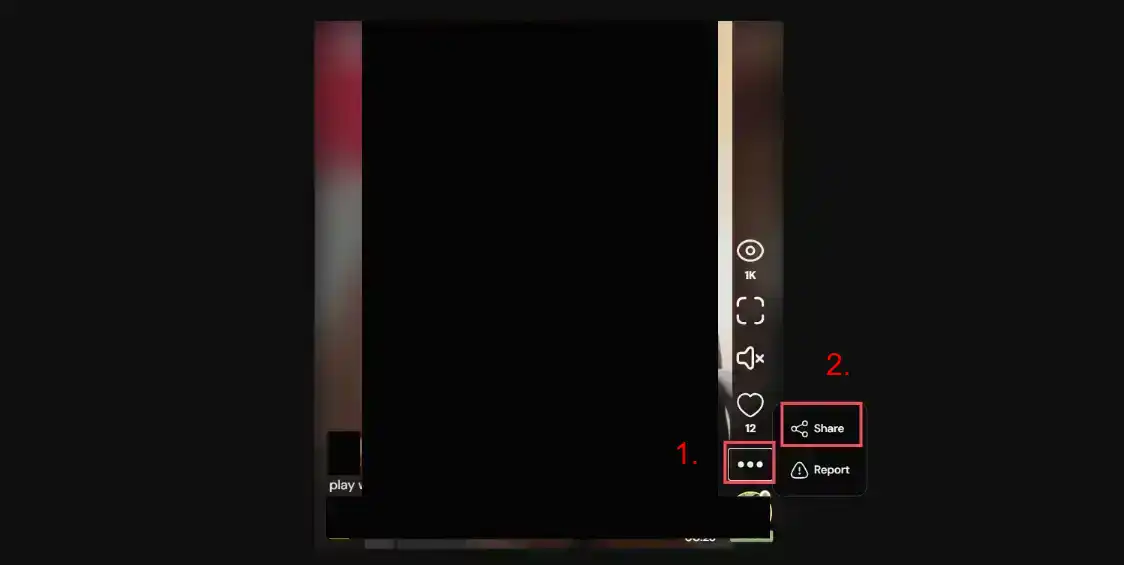
Find the options button (three dots) in the list on the right side of the video, click Share, then click Copy Link
Go to any of the above websites, paste the copied link, then click the download button

Wait for the URL analysis to complete, the download button will automatically appear
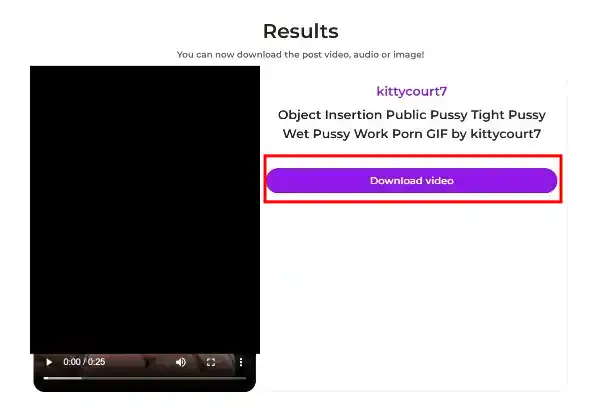
Click the download button, the browser will start downloading the video. Download speed depends on the website server’s speed
Comparison of Three Online Tools
- redgifsdownloader
- Download speed depends on the downloader server’s speed, not the user’s own download speed, which may be slower
- Has pop-up advertisements, causing some inconvenience to users
- Cannot specify download location
- clipsey redgif Downloader
- Download speed depends on Redgifs server speed, very fast
- Fewer advertisements, tested without pop-up ads
- Has mobile app version
- Users can right-click the video to choose download location
- redgifdownloader
- Download speed depends on Redgifs server speed, very fast
- Less stable, tested unable to parse some videos
- Has pop-up advertisements
- Users can right-click the video to choose download location
Download Redgifs Videos Using Browser Extensions
Using browser extensions significantly increases the convenience of downloading videos. Browser extensions provide more powerful features than online tools while remaining compatible with most browsers. Most browser extensions have versions for Chrome and Firefox, allowing users to install according to their needs.
Who Should Use Browser Extensions for Downloading Redgifs Videos?
Browser extensions are typically suitable for heavy users who also want an ad-free experience.
If you need to download videos frequently, download multiple videos, or have speed requirements,
the following user types will find them particularly suitable:
- Users who download large quantities
- Users who need frequent downloads
- Users who want one extension for multiple platforms
- Users who dislike advertisements
Pros
Multi-threaded accelerated downloading, 5-10 times faster
No ad interference
Supports more platforms besides Redgifs
Some plugins support downloading to specific folders
Supports multiple simultaneous download tasks
No need to manually copy URLs and wait for parsing
Browser-officially certified plugins, risk-free
Cons
Some extensions require payment
Some extensions only support Chrome
Only works on computer browsers; mobile users need to download Kiwi browser to install extensions
Download Redgifs Videos Using Getvid Video Downloader
Getvid Video Downloader is a new universal downloader extension that automatically analyzes videos from multiple media platforms, providing users with convenient media downloading capabilitie.
Usage Steps
The following demonstration uses Chrome browser
First go to the store page, depending on which browser you use. Chrome and Edge are recommended as they have more features, such as downloading to specific folders, recording function, larger download file support, etc., while Firefox has higher performance. After entering the store, click Install to browser.
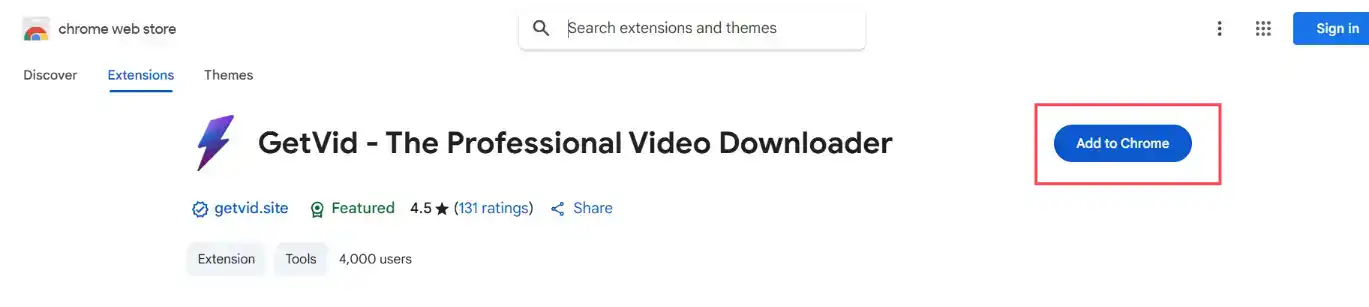
After successful installation, click the plugin icon in the toolbar, then create an account or log in with Google. (Login immediately grants free download credits)
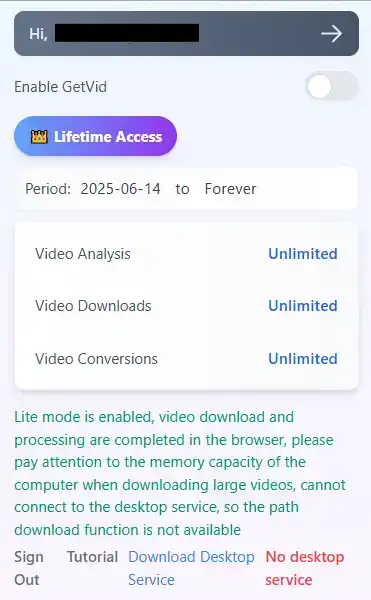
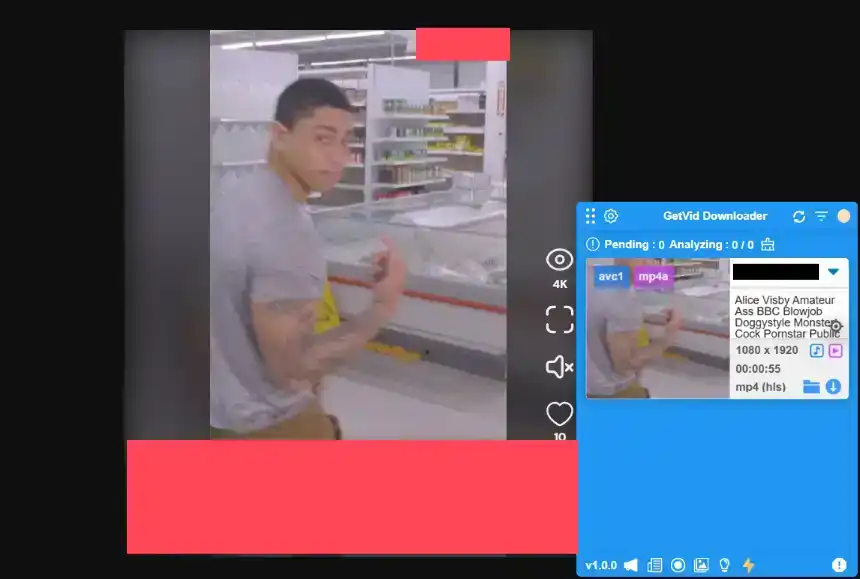
After logging in, you’ll see a blue area appear in the lower right corner - this is Getvid’s floating element. All analyzed and downloadable videos will appear here.
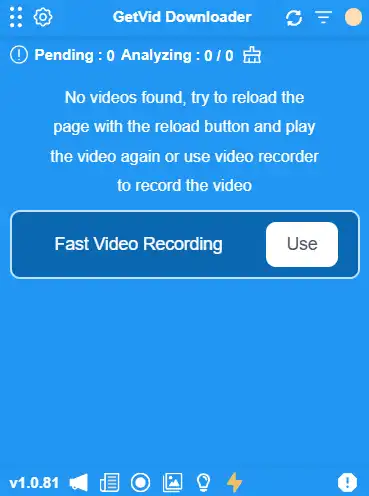
Go to the Redgifs video URL you want to download, wait for Getvid to analyze the video. Getvid defaults to showing the highest resolution. After analysis completes, it will display on the floating element. Click download and select the download destination for high-speed downloading.
Download Redgifs Videos Using Video DownloadHelper
Video DownloadHelper is an established download brand that originally only had a Firefox version but was later ported to Chrome and Edge versions. As a 10-year-old brand, it has over millions of download users.
Usage Steps
Go to the Google Store page, search for Video DownloadHelper, then click Install to browser for installation.
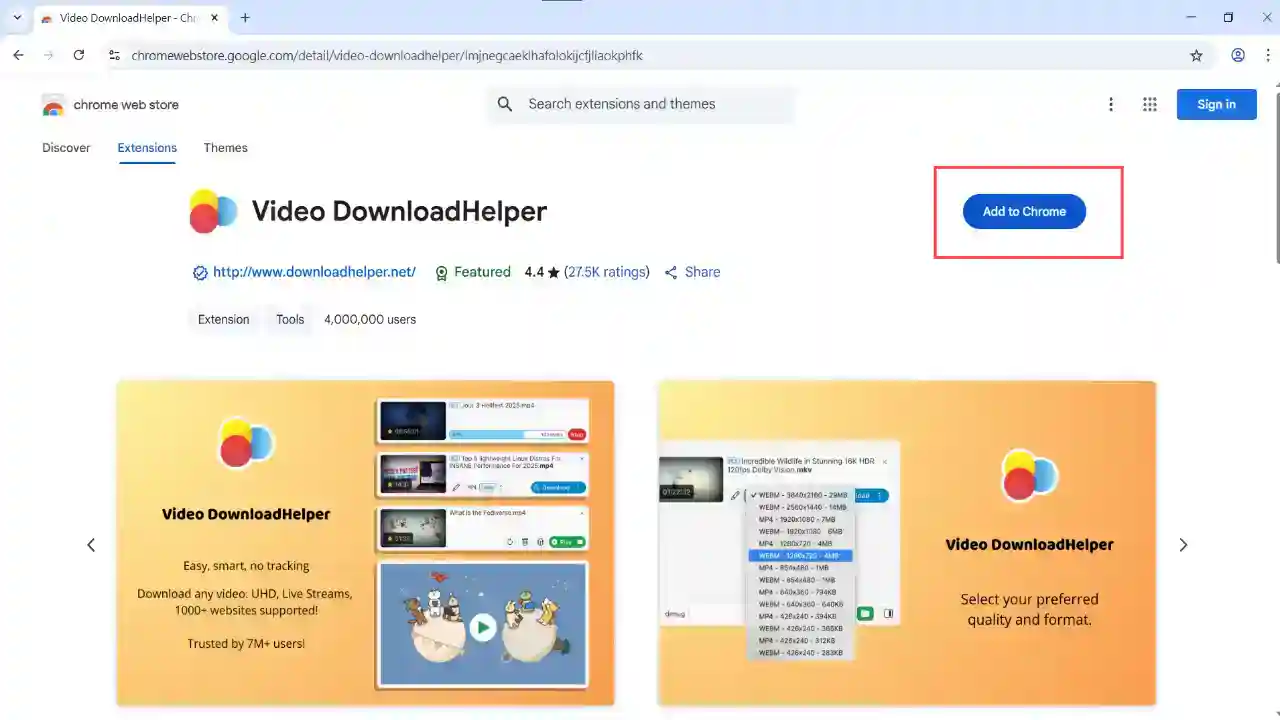
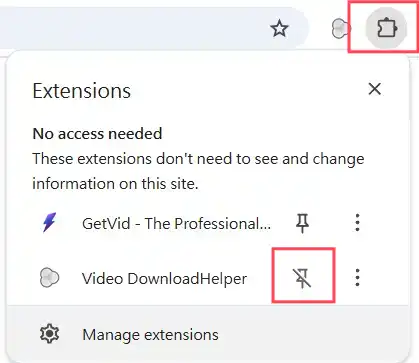
After installation completes, pin the plugin to the toolbar for easy access
Go to the Redgifs video URL you want to download, wait for Video DownloadHelper to analyze the video. After successful analysis, you’ll see which videos can be downloaded and can adjust the desired resolution, then click the download button
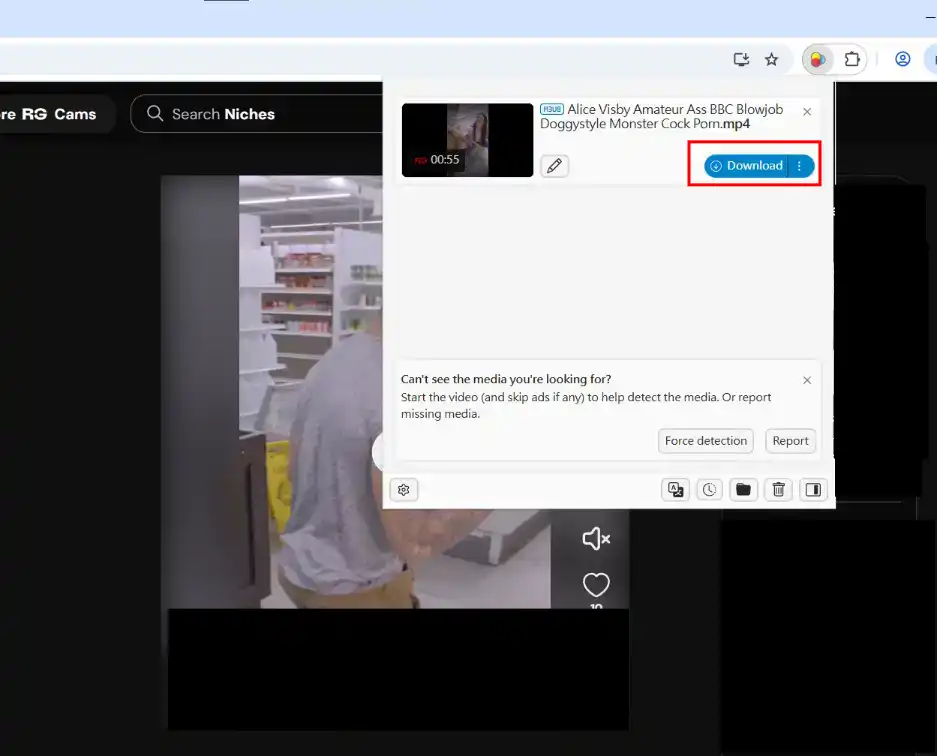
Wait for Video DownloadHelper’s internal download to complete, then it will trigger the browser to save the downloaded file to the default download location
Download Redgifs Videos Using FetchV
FetchV is a browser extension tool specifically designed for HLS/M3U8 video downloading, available only for Edge and Chrome. This lightweight plugin has gained hundreds of thousands of users.
Usage Steps
Go to the Google Store page, search for FetchV, then click Install to browser for installation.
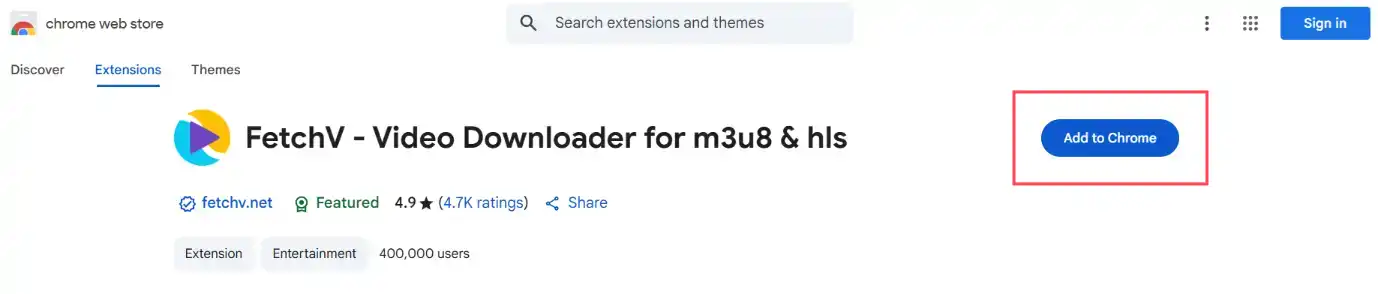
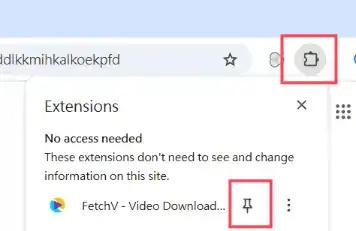
After installation completes, pin the plugin to the toolbar for easy access
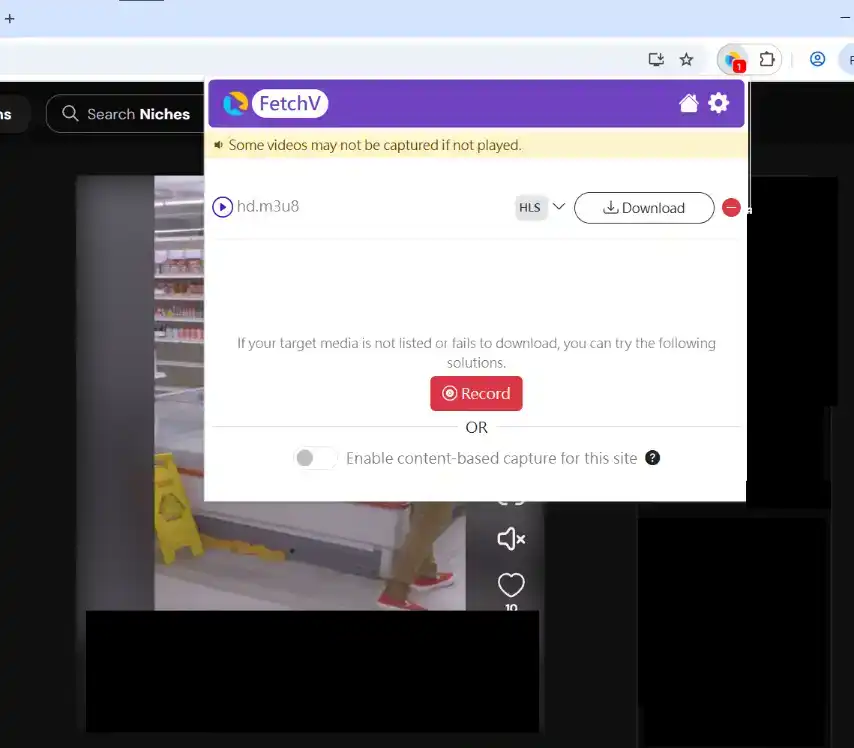
Go to the Redgifs video URL you want to download, wait for FetchV to analyze the video. After successful analysis, you’ll see which videos can be downloaded and can adjust the desired resolution, then click the download button
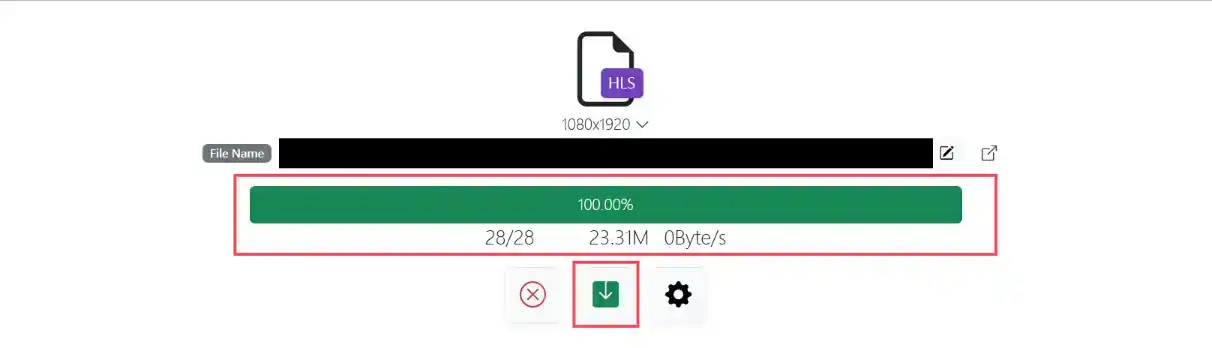
After clicking the download button, a new tab will automatically open showing download progress, video frame information, etc. Wait for download to complete, then click Save to download to local storage
Comparison of Three Browser Extensions
- Getvid video Downloader
- Supports multi-threaded downloading
- Supports downloading from modern streaming technologies like HLS and DASH
- Supports downloading to any specified folder
- Multiple tasks parallel downloading, maximizing CPU usage
- Screen recording function
- Image downloading function
- Low subscription price for unlimited downloads
- Supports platforms using HLS and DASH technologies
- Supports image preview
- Ad-free
- Video DownloadHelper
- Latest version doesn’t require Co-App installation
- Supports multi-threaded downloading
- Free users can only download once every 2 hours, no subscription service
- Multiple tasks parallel downloading, maximizing CPU usage
- Can specify system default folder
- Supports image preview
- Supports platforms using HLS technology
- Ad-free
- FetchV - Video Downloader for m3u8 & hls
- Supports up to 3-thread downloading
- Opens new tab for downloading (contains ads)
- Cannot download to specified folder
- Supports platforms using HLS technology
- Does not support image preview
- Completely free
Download Redgifs Videos Using Local Open Source Tools
Using local open source tools is another way to download Redgifs videos. Open source tools typically mean the code is publicly accessible, providing certain security guarantees. Using open source tools offers stronger privacy protection, making them suitable for privacy-conscious users.
Download Redgifs Videos Using yt-dlp
yt-dlp is an open source command-line tool that supports downloading from numerous websites, including many advanced command-line features such as automatic naming, specifying output location, etc. It covers the three major modern operating systems: Windows, Linux, and macOS.
Pros
Supports multiple platform downloads
Supports mainstream streaming technologies like Hls and Dash
Supports downloading to any specified folder
Multiple simultaneous parallel downloads
Cons
Only usable on computers
Requires command-line operation
Complex setup for multiple download tasks
Requires manual cookie input management
Usage Steps
Download yt-dlp Terminal
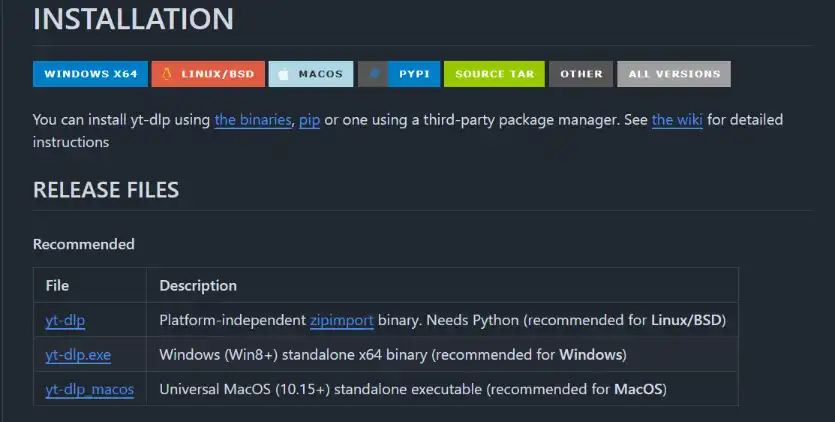
First go to yt-dlp’s Github page, scroll down to the INSTALLATION title, find your current operating system (Linux, Windows, macOS from top to bottom), then click the corresponding download button for your system. The author uses Windows system, so downloads the second one.
After downloading, place the program in a folder. This path should preferably contain only English characters without any spaces, otherwise parsing may fail.
Launch yt-dlp Using Command Line
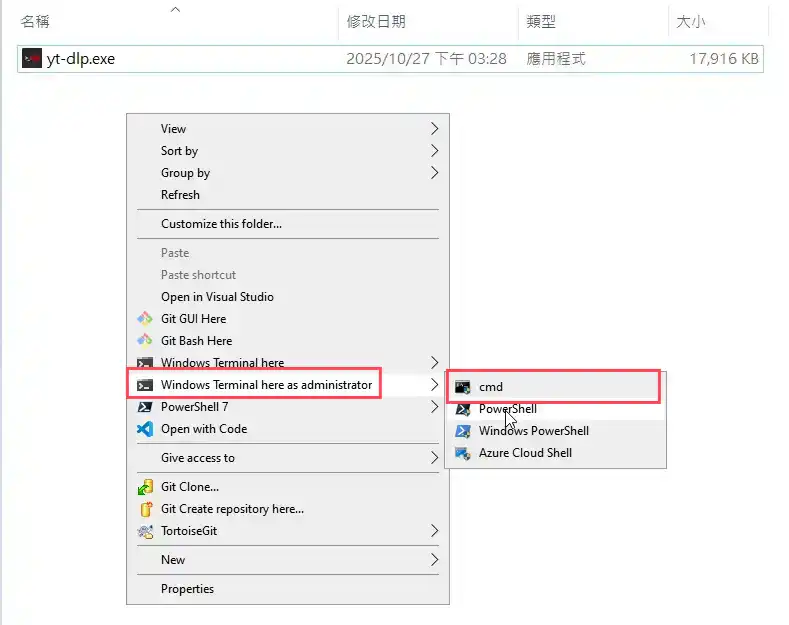
Open the folder where you placed yt-dlp, right-click in the blank area of the folder, a menu will pop up, click “Open command prompt here” in the menu. This will open a new command prompt window from the current path. Both cmd and powershell work.
Check if Installation Succeeded
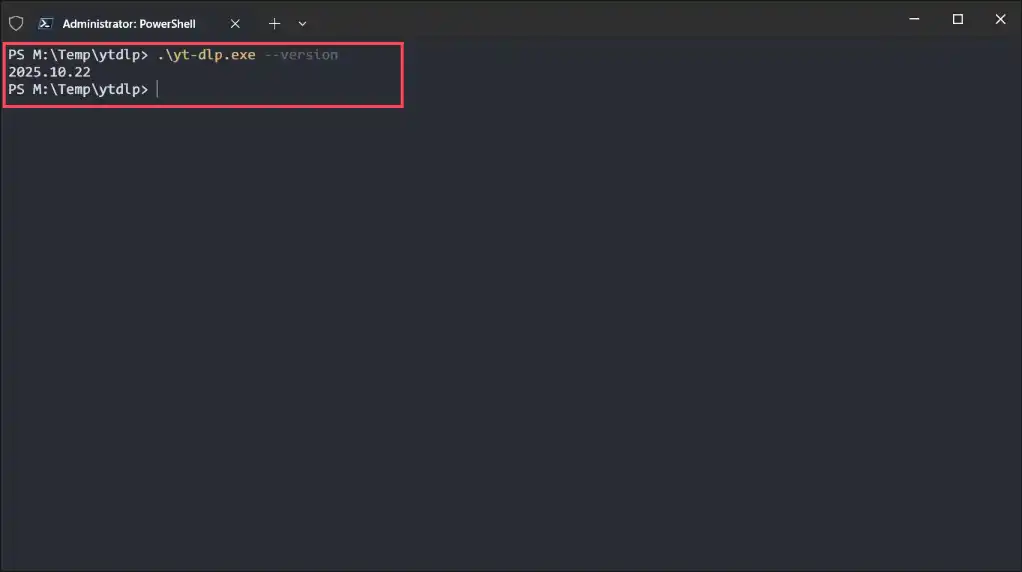
After the command prompt window opens, type .\yt-dlp --version (must include .\). If successfully installed, you’ll see the version number. If it fails, you might have opened the wrong folder - please repeat the operation.
Download Video
yt-dlp supports numerous command options, each corresponding to different functions. For most regular users, downloading directly using the following method is the fastest and most convenient.
In the command prompt window, type .\yt-dlp <video link> (must include .\), then wait for the software to analyze the page, then it will automatically download. As shown below, after successful download, the video will be automatically downloaded to the current directory.
You can also add -o "<video name>.mp4" after the command to specify the output file name, so it will be automatically named after download completes.

After successful download, you’ll see an additional mp4 file in the current directory - this is our desired video.

Other Command Options
If you want to use other command options to enhance download functionality, you can use .\yt-dlp --help to view all options. You can also refer to this article. The content takes a deep dive into various option usage methods, including:
- Custom output file names
- Custom output file paths
- Extract only video or audio
- Specify output formats
- List other resolutions for selection
- Others…
Summary and Recommendations
1. Only download tools from official sources - Avoid suspicious websites, the market is flooded with many phishing sites, users should carefully distinguish
2. Request permission before downloading - Before downloading videos uploaded by others, please obtain their consent first
3. Pay attention to updates - Always stay updated, keep used tools and browsers at their latest versions
4. Avoid entering personal information - When websites request cookies or Facebook login, avoid entering personal information
The tools introduced in this article can all help you easily download videos from Redgifs. We recommend users try them out to find the most convenient tool for themselves. Some users prefer command-line tools, some prefer browser extensions - these are all recommended tools worth considering.
Frequently Asked Questions
Q1. Is downloading Redgifs videos illegal?
When downloading Redgifs videos, note that most videos are uploaded by users themselves and are mostly copyright protected. Before downloading, users must obtain permission from copyright holders and should not randomly distribute or re-upload to other platforms to avoid legal issues.
Q2. What to do if Redgifs download fails?
- Check for latest software updates, keep software updated
- Unstable network environment, switch to stable network
- Try using different download tools
- Try using VPN, some regions may restrict download tools