
How To Disable Browser Cache For Easier Video Detection
When using browser extensions like Getvid Video Downloader, you might find that a video is detected and downloadable at first, but after refreshing the page, no videos are detected anymore. This is usually caused by browser caching. Browsers cache network requests to speed up page loading, but this can prevent video downloader extensions from detecting video streams.
Most browsers enable caching by default for text files and video data. When you reload a page, the browser may reuse cached resources instead of requesting them again. While this improves performance and saves bandwidth, it can make video detection unreliable.
This tutorial explains how to disable browser cache so your video downloader extension can always detect videos correctly.

Supports 2000+ Websites
One-Click Download to Folder
Auto Naming
Disable Browser Cache in Chrome
Chrome allows you to disable cache directly from Developer Tools. This method is recommended because it only affects the current tab and does not change your global browser settings.
Steps (Chrome)
- Open the webpage where the video is located
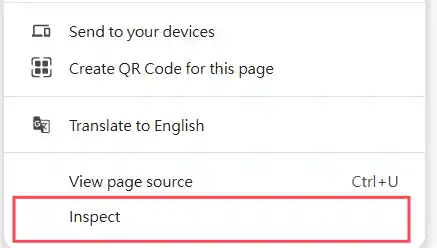
- Press F12 or Right-click → Inspect on any webpage to open Developer Tools
- Switch to the Network tab
- Check Disable cache
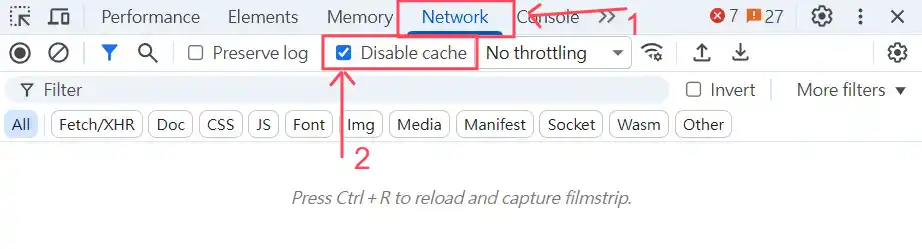
- Keep Developer Tools open, then refresh the page
Note:
The cache will remain disabled only while DevTools is open.
Once DevTools is closed, Chrome will re-enable caching automatically.
With cache disabled, video downloader extensions can reliably detect video requests, including HLS and m3u8 streams.
Disable Browser Cache in Firefox
Firefox also provides a built-in option to disable cache through Developer Tools, but the location is slightly different from Chrome.
Steps (Firefox)
- Open the webpage you want to analyze
- Press F12 or Right-click → Inspect

- Open the Network panel
- Click the ⚙️ Settings icon inside the Network tab
- Enable Disable Cache
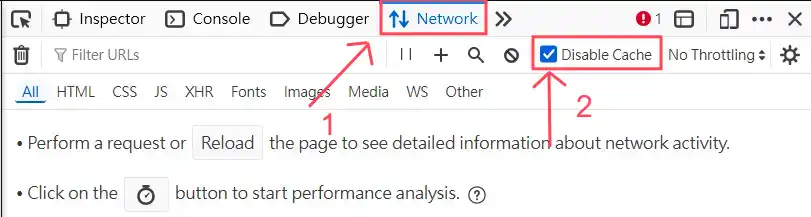
- Refresh the page while Developer Tools remains open
Note:
Firefox only disables cache while Developer Tools is open, just like Chrome.
After disabling cache, Firefox will always send fresh network requests, allowing video downloader extensions to consistently detect video streams.
When Should You Disable Browser Cache?
Disabling browser cache is useful when:
- A video is detected once but disappears after refresh
- HLS or m3u8 requests no longer appear in the Network tab
- Video downloader extensions show “No videos detected”
- You are repeatedly debugging media requests
For normal browsing, keeping cache enabled is recommended for better performance.
Summary
Disabling browser cache forces the browser to reload all network requests instead of using stored data. This ensures reliable video detection.
- Chrome: Network tab → Disable cache
- Firefox: Network tab → Settings → Disable cache
- Cache is disabled only while Developer Tools is open
- No permanent browser settings are changed