
Why Downloaded Facebook Videos Have No Sound? 3 Methods to Download Videos with Audio Instantly!
Want to freely download videos and images from Facebook? Want to save those precious moments with friends? Use the Getvid Video Downloader extension, supporting over 2000 platforms, allowing you to instantly download any video you want and easily save it to your computer. This all-in-one tool eliminates the need to search for different download tools for various websites - just install one extension to download videos from 2000+ sites.


Overview
Facebook, as one of the world’s largest social platforms, is filled with interesting videos and images.
However, in recent years, many users have discovered that downloaded Facebook videos often “have no sound”!
Why does this happen? This article will explain the reasons in detail and teach you 3 methods to immediately download “videos with audio.”
What is DASH Format?
DASH (Dynamic Adaptive Streaming over HTTP) is a streaming media transmission technology that automatically adjusts video quality based on different network environments and device performance to ensure the best playback experience. The characteristic of this technology is that video and audio are separated and transmitted in segments, which is why downloaded videos appear corrupted - you only downloaded one part. The player cannot play the entire content with just a small segment, leading to failure!
Imagine video and audio as “two parallel highways” - one transmits the visuals, the other transmits the sound. If you only capture one of them during download, naturally you’ll get “no sound.”
How to Solve the Audio-Video Separation Problem?
More and more platforms are now using DASH or HLS technology for video delivery. While this is excellent for service providers, it presents a significant problem for users, especially those who need to save videos. Users need to download video files and audio files separately and then merge them themselves, which is a cumbersome task for most users. Below we’ll introduce 3 common methods to download Facebook videos with sound, including:
- Using Browser Extensions
- Using Online Website Tools
- Using Open Source Software yt-dlp

Supports 2000+ Websites
One-Click Download to Folder
Auto Naming
Method 1: Using Browser Extensions
Using GetVid - The Professional Video Downloader (Recommended)
Pros
Ready to use immediately
Officially certified extension for Chrome, Edge, Firefox
Automatically merges audio and video
Supports multiple social media platforms including Facebook, Instagram, Thread, Snapchat, TikTok, and more
Supports multiple download formats
Supports private videos, Stories, Reels downloads
Cons
Only available on computers
Usage Steps
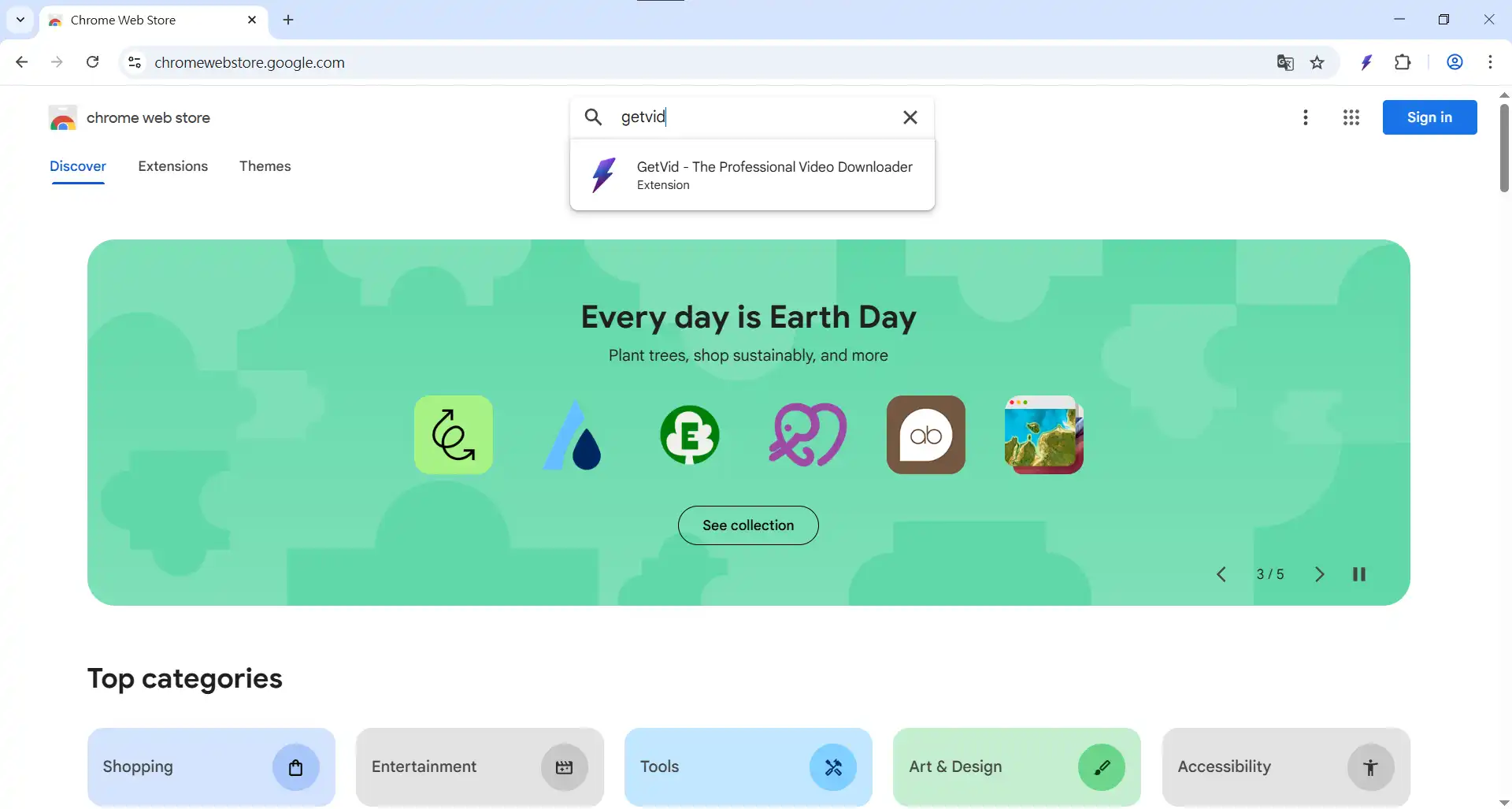
Search for GetVid in Chrome Web Store
Open Google Chrome or Edge browser on your computer, search for GetVid, then click install
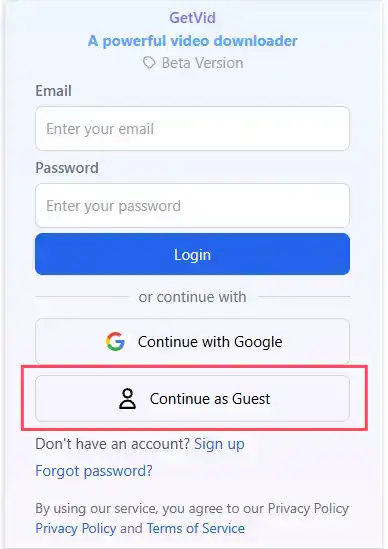
Basic Setup
Find the GetVid icon in the top right corner of the browser, enter guest mode, you'll see a small blue area in the bottom right showing videos on the current page
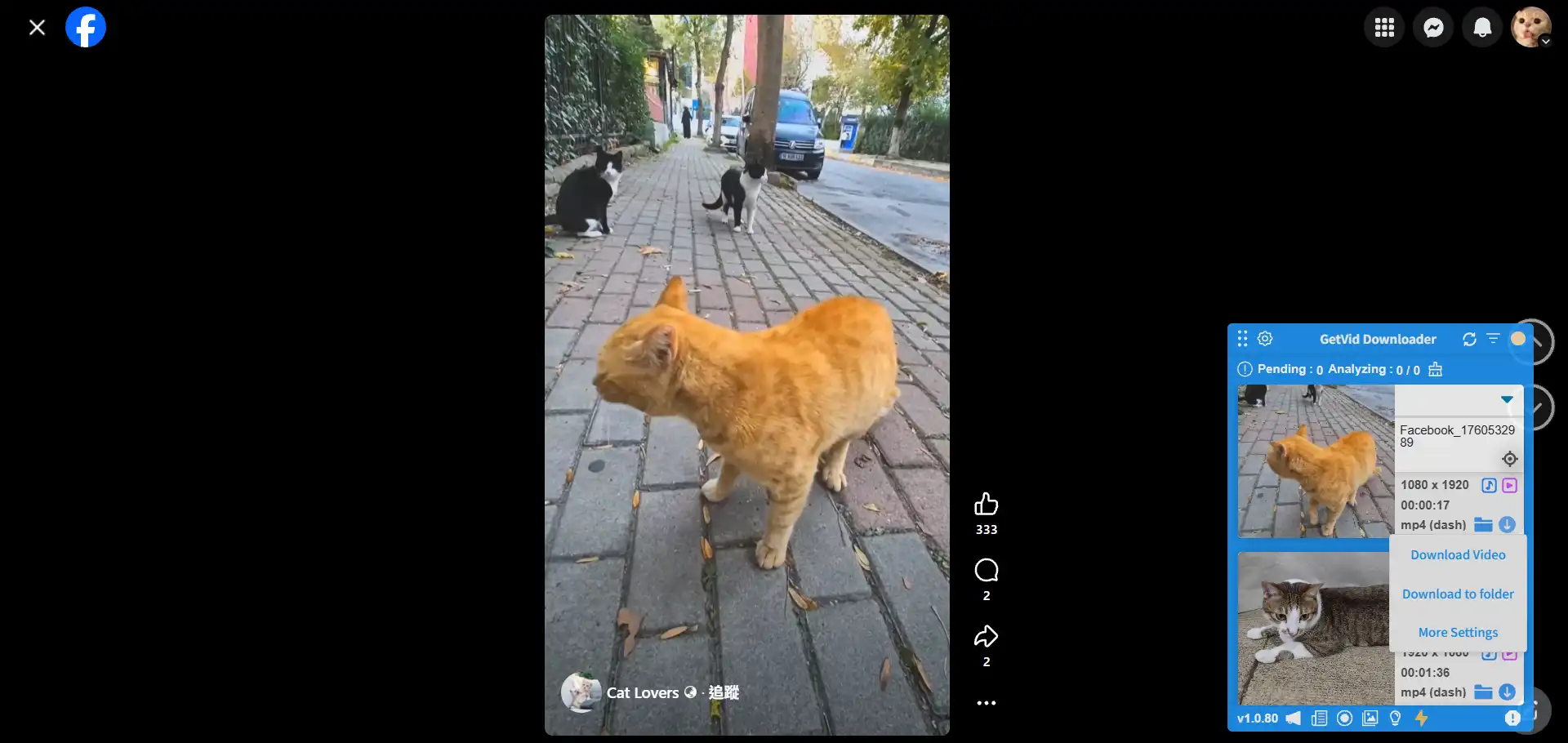
Download
Go to the Facebook video page you want to download, when the video is fully analyzed, click the download button and save to your specified path
Using ESUIT | Video Downloader for Facebook™
Pros
Ready to use immediately
Downloaded videos include sound
Supports multiple download formats
Supports private videos, Stories, Reels downloads
Cons
Only available on computers
Only supports Facebook video downloads
Usage Steps
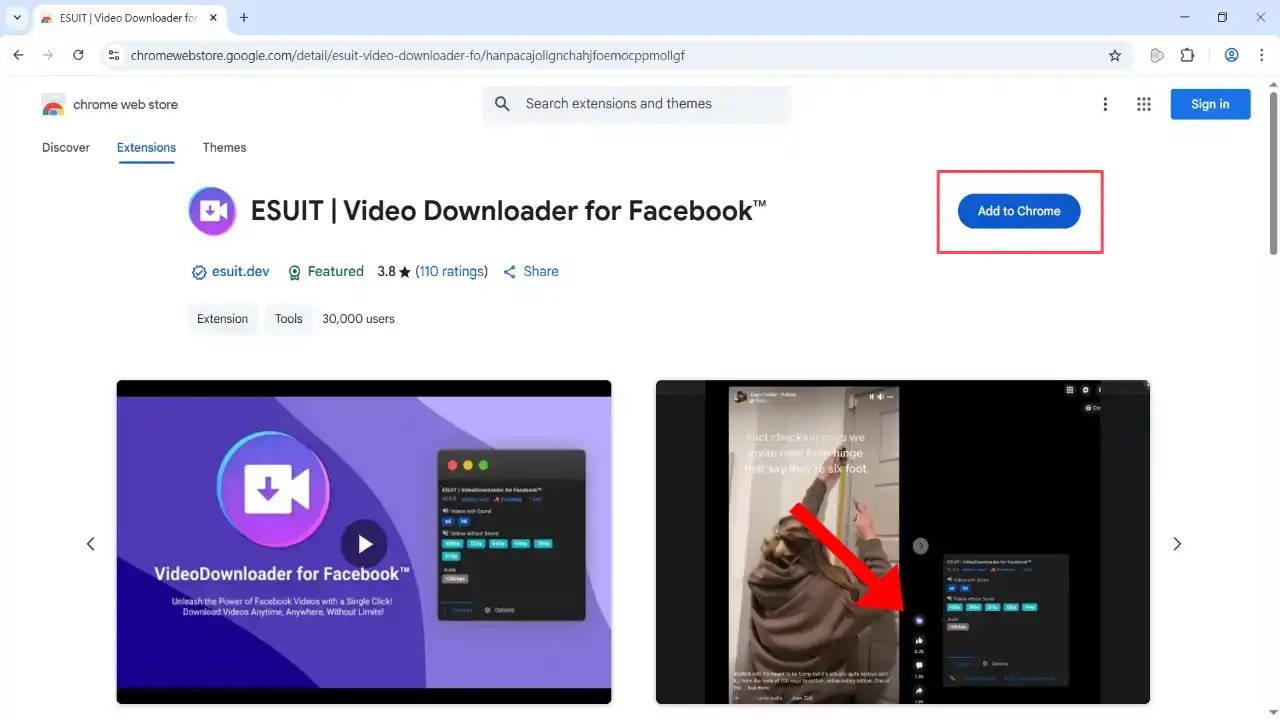
Search for ESUIT Video Downloader for Facebook in Chrome Web Store
Open Google Chrome or Edge browser on your computer, search for ESUIT Video Downloader for Facebook, then click install
Download
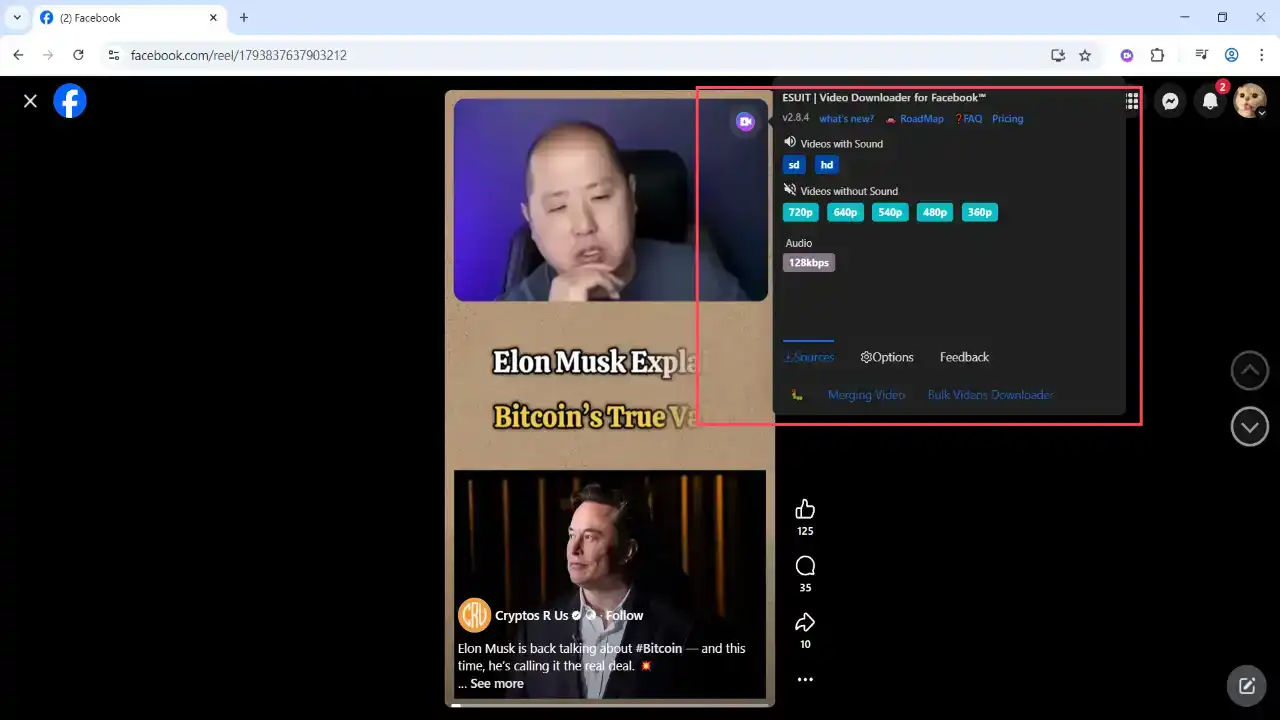
ESUIT automatically adds a download button in the top right corner of video elements. Just hover over the button to see the download popup, then select your preferred quality to download
Method 2: Using Online Website Tools
Using Snapsave Download
Pros
No software installation required
Downloaded videos include sound
Works on both mobile and computer
Cons
Cannot download private videos
Requires manual link copying
Not friendly for batch downloads
Usage Steps
Visit Snapsave Website
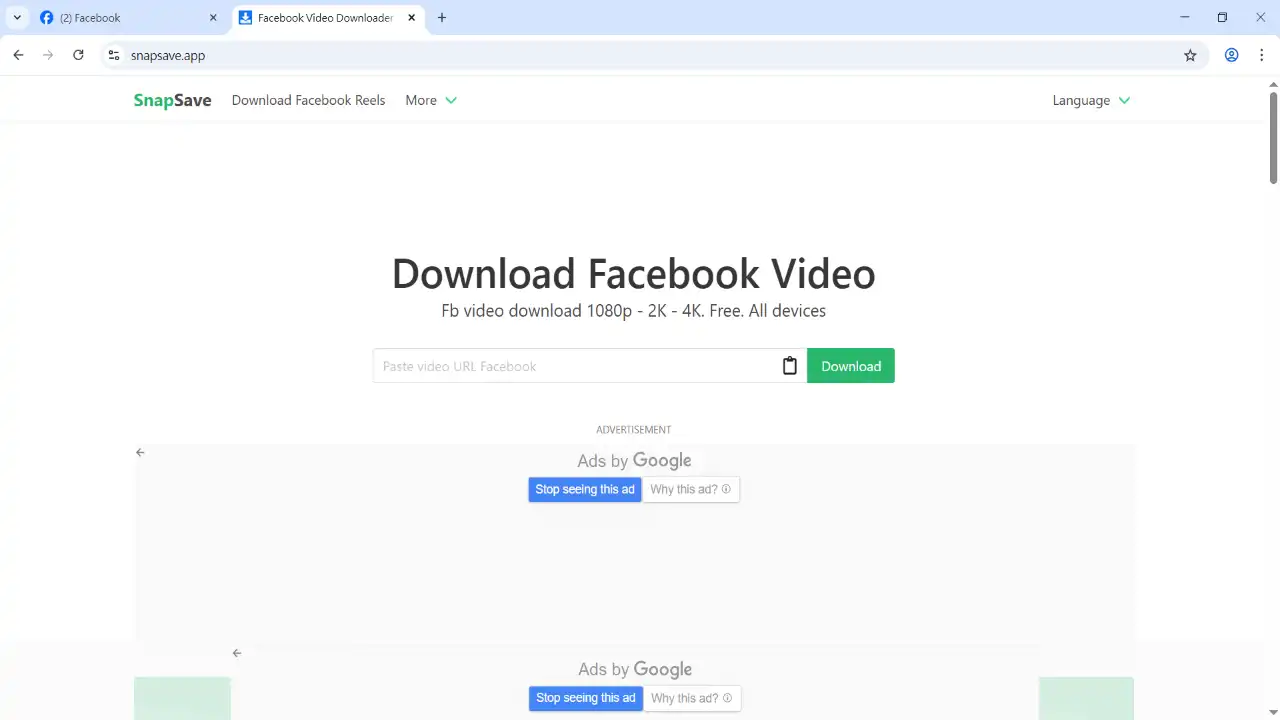
Copy Link and Paste into Input Box for Analysis
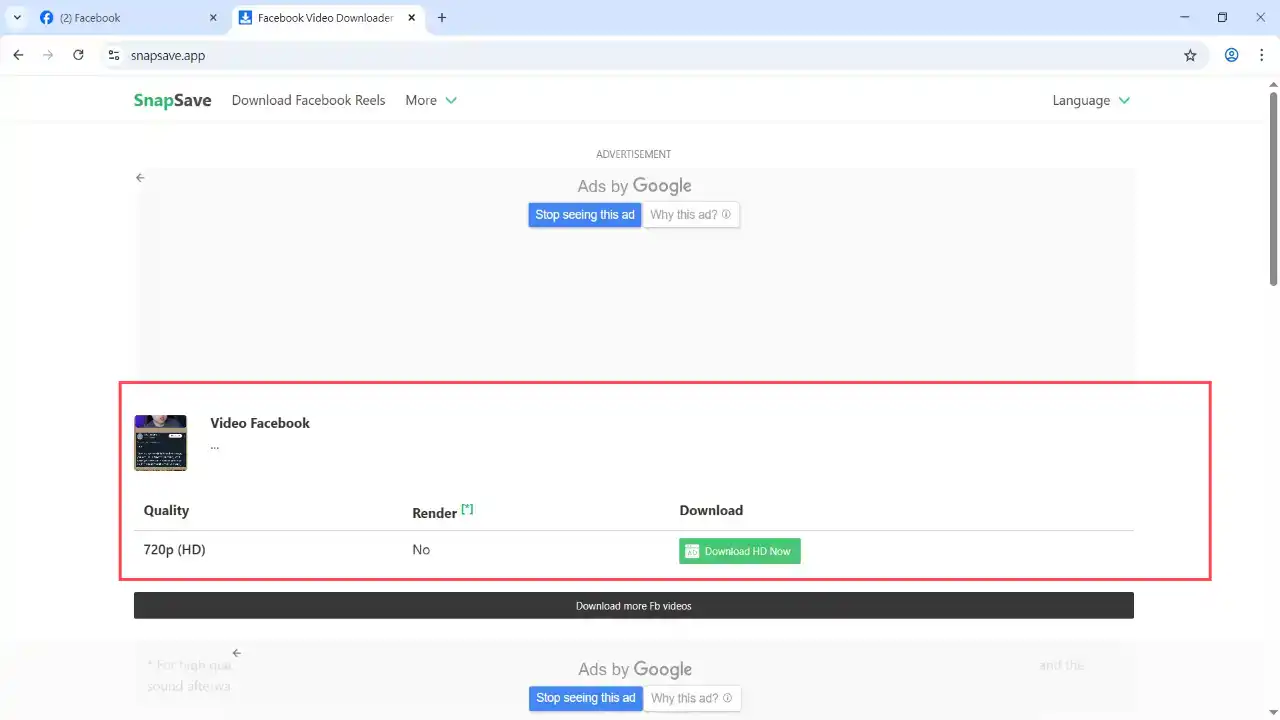
Copy the Facebook video link you want to download, paste it into the input box, click the analyze button, wait for the analysis to complete, and you’ll see detailed information about the video, including video length, current quality, and download format.
Method 3: Using Open Source Software yt-dlp
Pros
Tool supports multiple websites
Can download private videos (requires cookie setup)
Open source, no risk of malware
Cons
Complex operation
Requires manual link copying
Requires command line operation
Interface not user-friendly for average users
Usage Steps
Download yt-dlp Executable
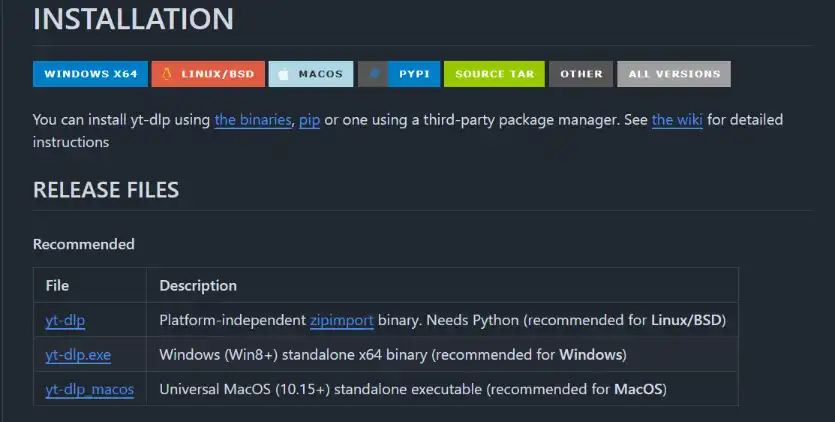
First go to yt-dlp’s Github page, scroll down to the INSTALLATION section, find your current operating system (Linux, Windows, macOS from top to bottom), and click the corresponding download button for your system. The author uses Windows, so downloads the second option.
After downloading, place the program in a folder. This path should preferably contain only English characters and no spaces, otherwise it might cause parsing failures.
Launch yt-dlp Using Command Line
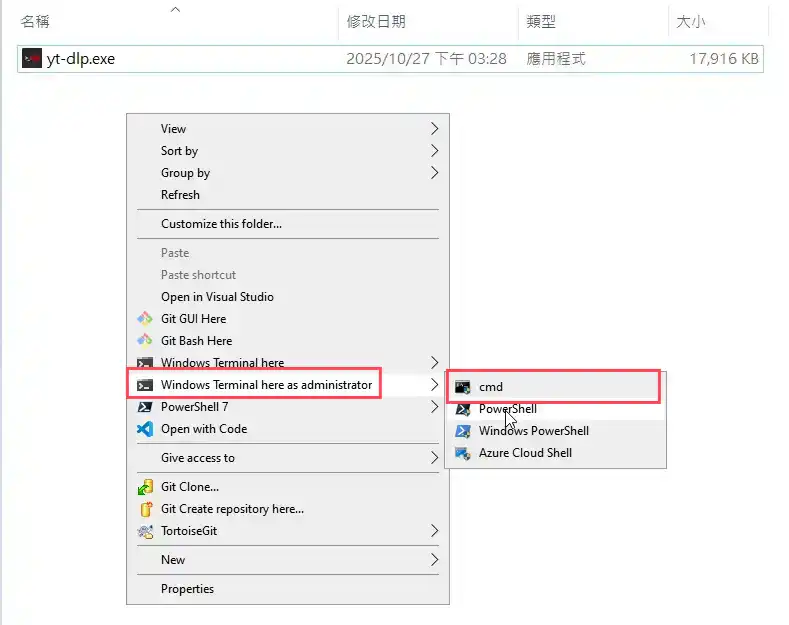
Open the folder where you placed yt-dlp, right-click in an empty space in the folder, and a menu will pop up. Click “Open command prompt here” or similar option to open a new command prompt window from the current path. Both cmd and powershell work fine.
Check if Installation is Successful
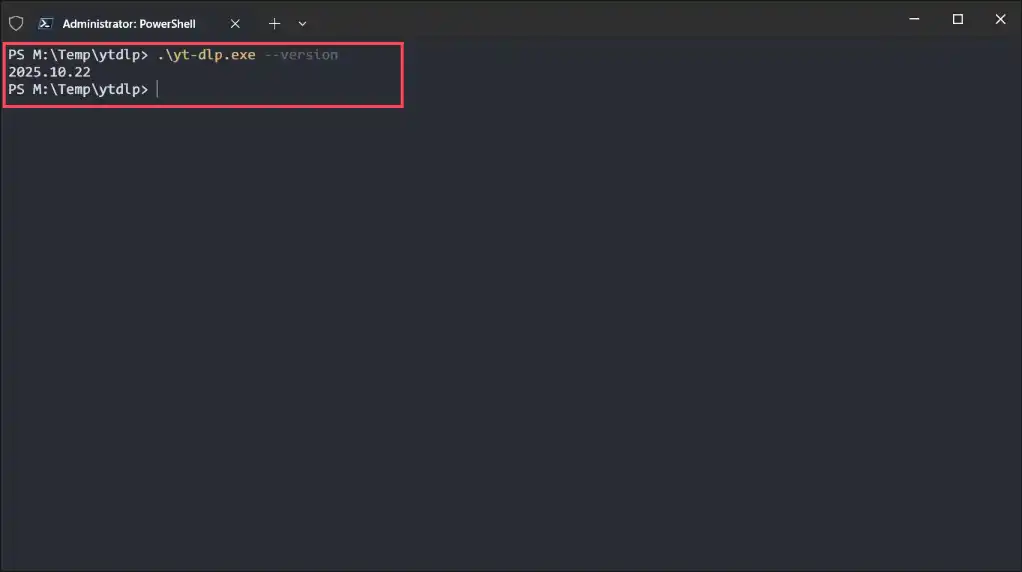
After the command prompt window opens, type .\yt-dlp --version (must include .), If successfully installed, you’ll see the version number. If it fails, you might have opened the wrong folder - please repeat the operation.
Download Video
yt-dlp supports numerous command options, each corresponding to different functions. For most average users, using the following method is the fastest and most convenient.
In the command prompt window, type .\yt-dlp <Facebook video link> (must include .), then wait for the software to analyze the page, after which it will automatically download. As shown in the image below, after successful download, the video will be automatically saved to the current directory.
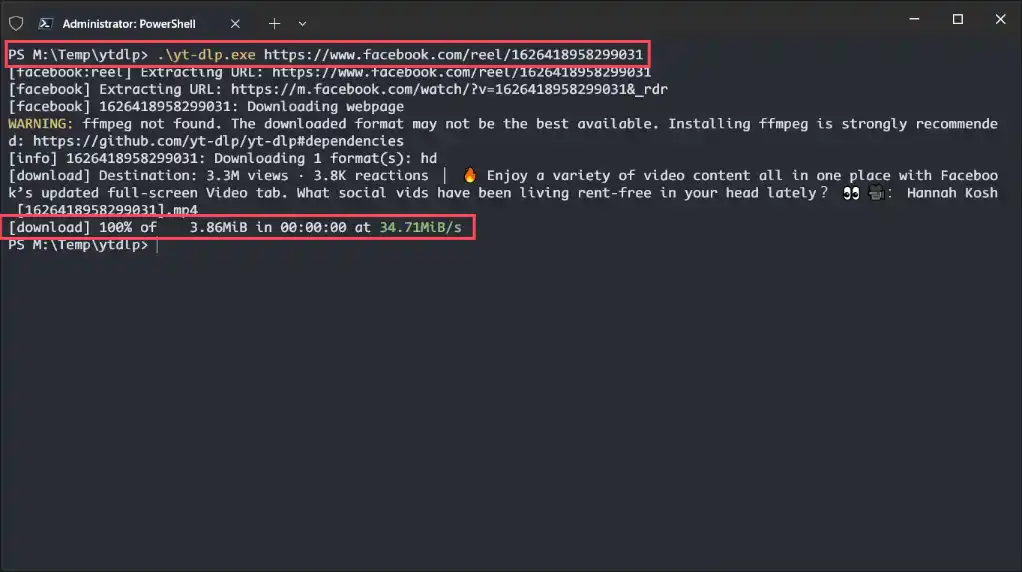
After successful download, you’ll see an mp4 file in the current directory - this is the video we need.

Other Command Options
If you want to use other command options to enhance download functionality, you can use .\yt-dlp --help to view all available options. You can also refer to this article which details various option usage methods, including:
- Custom output file names
- Custom output file paths
- Extract only video or audio
- Specify output format
- List available resolutions for selection
- And more…
How to Choose the Right Tool for You?
This article introduced three methods for downloading Facebook videos, each with its own characteristics. Users can choose the tool that best suits their needs. However, we recommend using GetVid - The Professional Video Downloader. It’s a multi-website downloader that can download videos from numerous websites, including social media sites, YouTube, and websites using HLS and DASH technology. It automatically merges audio and video, eliminating the cumbersome merging process and ensuring your downloaded videos won’t be silent. This extension is definitely very convenient and practical for average users.
Supports 2000+ Websites
One-Click Download to Folder
Auto Naming
⚡ Important Notes
1. Only download tools from official sources - Avoid suspicious websites. The market is flooded with many phishing sites, users should carefully distinguish them
2. Request permission before downloading - Before downloading videos uploaded by others, please seek their consent first
3. Stay updated - Always keep your tools and browser updated to the latest versions
4. Avoid entering personal information - When websites request cookies or Facebook login information, avoid entering personal details
🎯 Conclusion
Now you know why downloaded Facebook videos have no sound.
Try Getvid Video Downloader right away - solve audio-video separation issues with one click!