
How to Download View-Only Videos from Google Drive
A view-only Google Drive file hides the download entry, but the video is still delivered to your browser as a normal media stream. That means it can be captured. Below you will find the two methods that actually work, the reason the four common workarounds fail, and fixes for every error we have hit while testing.


Why Google Drive hides the download button
Google Drive assigns one of four roles when a file is shared:
Commenter: can add comments
Editor: can modify the file
Owner: can change sharing and download
A “view-only” link means you were given the Viewer role. Drive removes the download button from the viewer interface, and the direct-download endpoint answers 403 Forbidden for your account.
Here is the part most guides miss: the file is not encrypted. Drive still streams the video to your browser in segments, exactly like YouTube or any other platform. Your browser has to receive the bytes in order to play them, and anything your browser receives can be saved.
That gap between “no download button” and “stream is unencrypted” is what every working method exploits.
The four workarounds that stopped working
If you have already tried these, here is why each one failed:
| You tried | Why it fails |
|---|---|
| Right-click then Save video as | The player uses a Media Source blob, there is no single file behind it |
| Change /view to the uc?export=download endpoint | The endpoint checks permissions and returns 403 for the Viewer role |
| Use the webContentLink from the page source | Same permission check, same 403 |
| Inspect element to find the video src | You get a blob: URL that only exists inside that tab |
Every one of them tries to use a download path. Permission is checked there. The methods below use the playback path instead, where your permission has already been granted.
Three situations, three different answers
Before reaching for a tool, check which case you are in, the solution is different for each:
| Your situation | What works | Difficulty |
|---|---|---|
| Someone shared a view-only link with you | Browser extension, or yt-dlp | Easy / Medium |
| The file is your own upload | Just change the sharing permission | Trivial |
| Company or school Workspace account | May be blocked by your admin | Often impossible |
| The link expired or access was revoked | Nothing, ask for a new link | N/A |
If the file is yours, skip to the permission method below, it takes 30 seconds and needs no software.
Method 1: Browser extension (no technical skill)
This is the fastest route for one or two files. The extension watches the page for media streams and offers a download control once it recognises the Drive player.
Install the Getvid extension
Available for Chrome, Edge and Firefox. Installation takes about 20 seconds and does not require an account.
Open the Drive link in the same browser
Keep the file open in the Drive viewer tab. You do not need to change the URL, /file/d/FILE_ID/view works as-is.
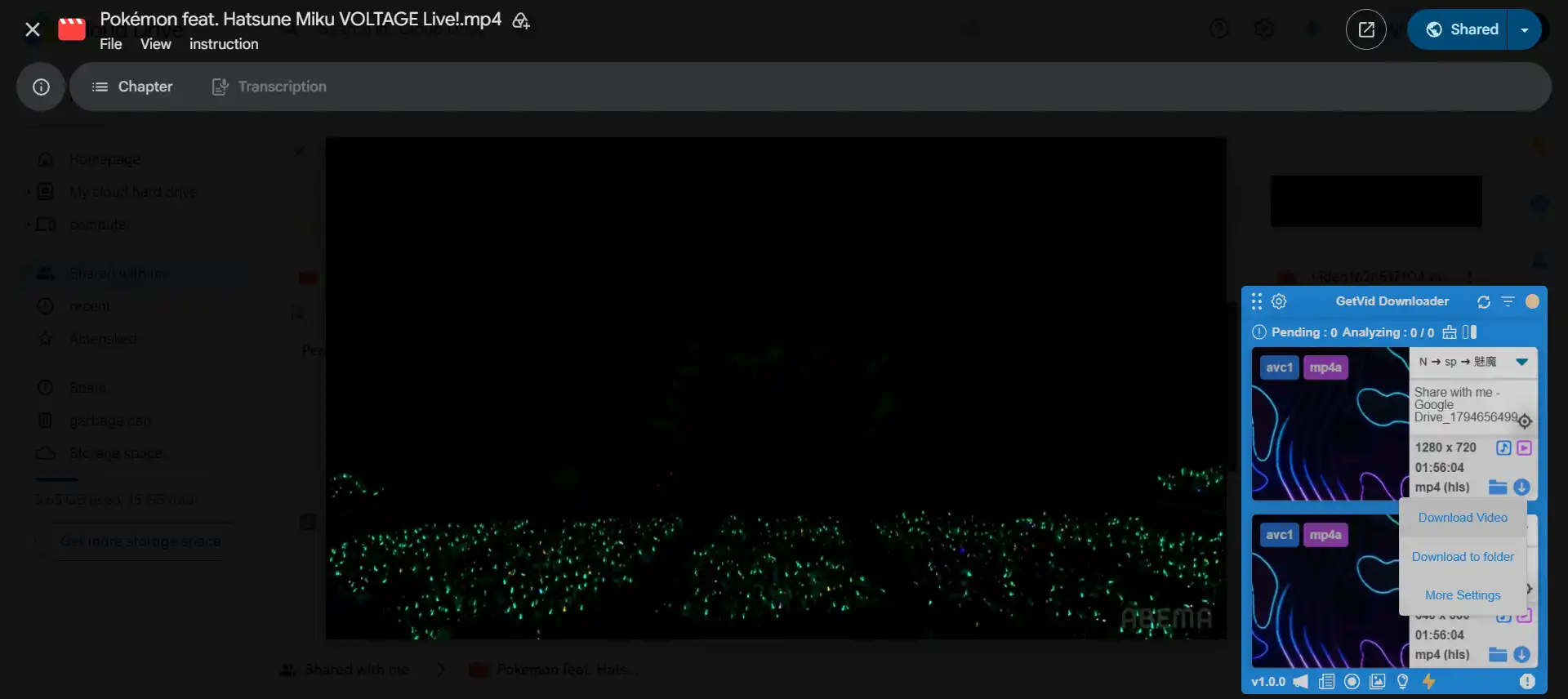
Click the overlay download button
The extension detects the media stream on the page and adds its own download control. Choose a resolution and the file is written straight to your Downloads folder. You can queue several videos at once instead of waiting for each one to finish.
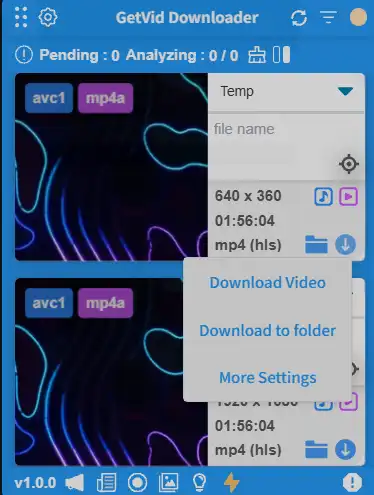
What the extension is actually doing
It is not cracking anything. When the Drive player starts, it requests a manifest file that lists every video and audio segment. The extension reads that manifest from the same tab, requests the segments with your existing session cookies, and concatenates them locally.
Because it reuses your session, it works with files shared to your Google account specifically, the case where anonymous downloaders fail.
Pros
Easy to set up, installs and works instantly
No command line, no dependencies
Queue several downloads in parallel
Works with files shared to your account
Multiple resolutions
Automatically combines audio and video tracks
Cons
Desktop browsers only, there is no mobile version
Very large files are better handled by the desktop app, which is Windows only
Large batches are slower than a CLI tool
yt-dlp with --continue instead.Method 2: yt-dlp (full control)
yt-dlp has a dedicated Google Drive extractor. It behaves the same way as the extension, but gives you flags for quality selection, resuming, and batch work.
Install yt-dlp
On Windows: winget install yt-dlp. On macOS: brew install yt-dlp. On Linux: pipx install yt-dlp. You also need ffmpeg in PATH for the merge step.
Copy the file ID from the share link
A Drive link looks like https://drive.google.com/file/d/1AbCdEfGhIjKlMnOpQrStUvWxYz/view. The part between /d/ and /view is the file ID.
Run yt-dlp against the link
Paste the full URL in quotes. yt-dlp reads the Drive player manifest and downloads the stream segments, then merges them into a single file.
Add cookies if the file requires sign-in
If the file is shared with specific accounts rather than "anyone with the link", pass --cookies-from-browser so yt-dlp can request it as you.
The basic command
yt-dlp "https://drive.google.com/file/d/FILE_ID/view"
yt-dlp writes the file to the current directory. To pick a folder and cap the resolution:
yt-dlp -P "D:\Videos" -f "bestvideo[height<=1080]+bestaudio/best" \
  "https://drive.google.com/file/d/FILE_ID/view"
bash yt-dlp --cookies-from-browser chrome "https://drive.google.com/file/d/FILE_ID/view" Use firefox, edge, or brave instead of chrome if that is where you are signed in. Chrome must be closed while yt-dlp reads its cookie database on Windows.Choosing between the two
| Browser extension | yt-dlp | |
|---|---|---|
| Setup time | 20 seconds | 5–10 minutes (plus ffmpeg) |
| Platform | Desktop browsers only | Windows, macOS, Linux |
| Works on mobile | No | Android via Termux |
| Command line needed | No | Yes |
| Queue several downloads | Yes, in parallel | Yes |
| Very large files | Better with the desktop app (Windows) | Supported |
| Handles private files | If you are signed in | With --cookies-from-browser |
| Max quality | Same as source | Same as source |
| Best for | A few files, no setup | Many files, automation |

Supports 2000+ Websites
One-Click Download to Folder
Auto Naming
If the file is yours
You do not need either tool. Change the permission instead:
- Open the file in Drive and click Share
- Under General access, change “Restricted” or “Viewer” to Anyone with the link → Viewer
- Open the link in an incognito window, the download button now appears
If you need the original file rather than a re-download, use Drive for desktop or take it from Google Takeout. Both give you the untouched original instead of a stream copy.
If it is a company or school account
Workspace administrators can disable downloads and third-party app access organisation-wide. When that policy is active:
- The download button is gone for every file, not just this one
- Extensions that read the stream are usually blocked by policy
- yt-dlp returns 403 even with valid cookies, because the session itself lacks the scope
Troubleshooting the four most common errors
| Error | What it means | Fix |
|---|---|---|
| 403 Forbidden | The share permission no longer allows access | Ask the owner to re-share, or sign in with an authorised account |
| Sign in to confirm you are not a bot | Drive is rate-limiting anonymous requests | Pass browser cookies to the downloader |
| Download stops partway | Connection dropped on a large file | Resume with --continue (yt-dlp does this by default) |
| Only 360p is available | The uploader posted a low-resolution file | Not fixable, the source is 360p |
403 Forbidden
Almost always a permission problem, not a tool problem. Check in this order:
- Is the link still valid? Owners can revoke access at any time.
- Is the share setting “anyone with the link” or “restricted to specific people”?
- If restricted, are you signed in to an account that was actually invited?
“Sign in to confirm you’re not a bot”
Drive rate-limits anonymous requests from datacentre IP ranges and from users who have made many requests in a short window. Supplying cookies resolves it because the request then carries a real session:
yt-dlp --cookies-from-browser firefox URL
If you are on a VPN, try turning it off first, this error is far more common from VPN exit nodes.
The download stops partway
Large files over an unstable connection. yt-dlp resumes automatically:
yt-dlp --continue URL
For the extension, re-open the page and click download again, it will restart from zero rather than resume, since the stream is re-requested.
Only 360p is available
This is not a tool limitation. Google Drive serves whatever the uploader provided. If the original upload was 360p, no downloader can produce 1080p. Verify with the owner before assuming something is broken.
Is downloading view-only videos allowed?
This is a fair question and it deserves a direct answer rather than a disclaimer.
The technical act of saving a stream is not what determines legality, your right to access the content does. The practical distinction:
| Situation | Reasonable |
|---|---|
| You have legitimate access and want an offline copy for yourself | Generally fine |
| You are saving your own uploads | Fine |
| You re-upload or redistribute someone else video | Not fine |
| You bypass an organisational policy at work or school | A policy violation regardless of the tool |
| The content is commercial and you are avoiding a paid licence | Not fine |
The methods on this page copy a stream you were already granted access to. They do not defeat encryption, they do not guess passwords, and they do not grant access you did not have. What you do with the resulting file is a separate question.
Frequently asked questions
Q1. Does this work if the owner disabled downloading?
Yes for viewing-permitted files. The "prevent downloaders from copying" option in Drive removes the download button and blocks the /uc?export=download endpoint, but it does not encrypt the playback stream. Both methods here capture the stream that your browser is already receiving.
Q2. Do I need to be signed in to my Google account?
Only if the file is not shared as "anyone with the link". For restricted files, the downloader has to make the same authenticated request your browser makes, which means passing your cookies.
Q3. Will the download reduce the video quality?
No. Both methods copy the original stream without re-encoding, so you get exactly the resolution the uploader provided. If the source is 480p, that is what you will get.
Q4. Can I download from a phone?
Not with the extension. It installs in desktop browsers only, on Chrome, Edge and Firefox, and there is no mobile version. If you need the file on Android, yt-dlp runs through Termux; on iOS neither option is practical without a desktop machine.
Q5. Does it download more than one file at a time?
Yes. You can start several downloads and they run in parallel, so there is no need to wait for one video to finish before queueing the next. yt-dlp also accepts a list of URLs for larger batches.
Q6. What about very large files?
The desktop application handles those better than the browser extension, since it is not limited by the browser download manager. The desktop app is available for Windows only.
Q7. Why does it fail on my company Google account?
Google Workspace administrators can disable downloading and third-party access at the organisation level. If that policy is on, the playback stream itself may be restricted and no client-side tool will get around it. Ask your admin.
Q8. Is the file still view-only after I download it?
The copy on your disk is a normal video file you can play offline. The original Drive file keeps its permissions, nothing about the shared link changes.
Summary
The reason the usual workarounds fail is that they all try the download endpoint, where permissions are enforced. The playback stream is a different path, and it has to be readable by your browser in order for the video to play at all.
- A few files, no setup → the browser extension (desktop only, several downloads can run at once)
- Very large files → the desktop app, Windows only
- Many files, or you want flags →
yt-dlp, with--cookies-from-browserwhen the file is restricted - It is your own file → change the sharing permission, it is faster than any tool
- Workspace account, blocked by admin → no workaround exists, contact the admin